Short answer: open the song in Free Audio Editor, drag across the waveform to select the part you want, add a short fade, and use Export Selection to save it. Cutting and saving WAV are free; convert to MP3 free with Free Video & Audio Converter.
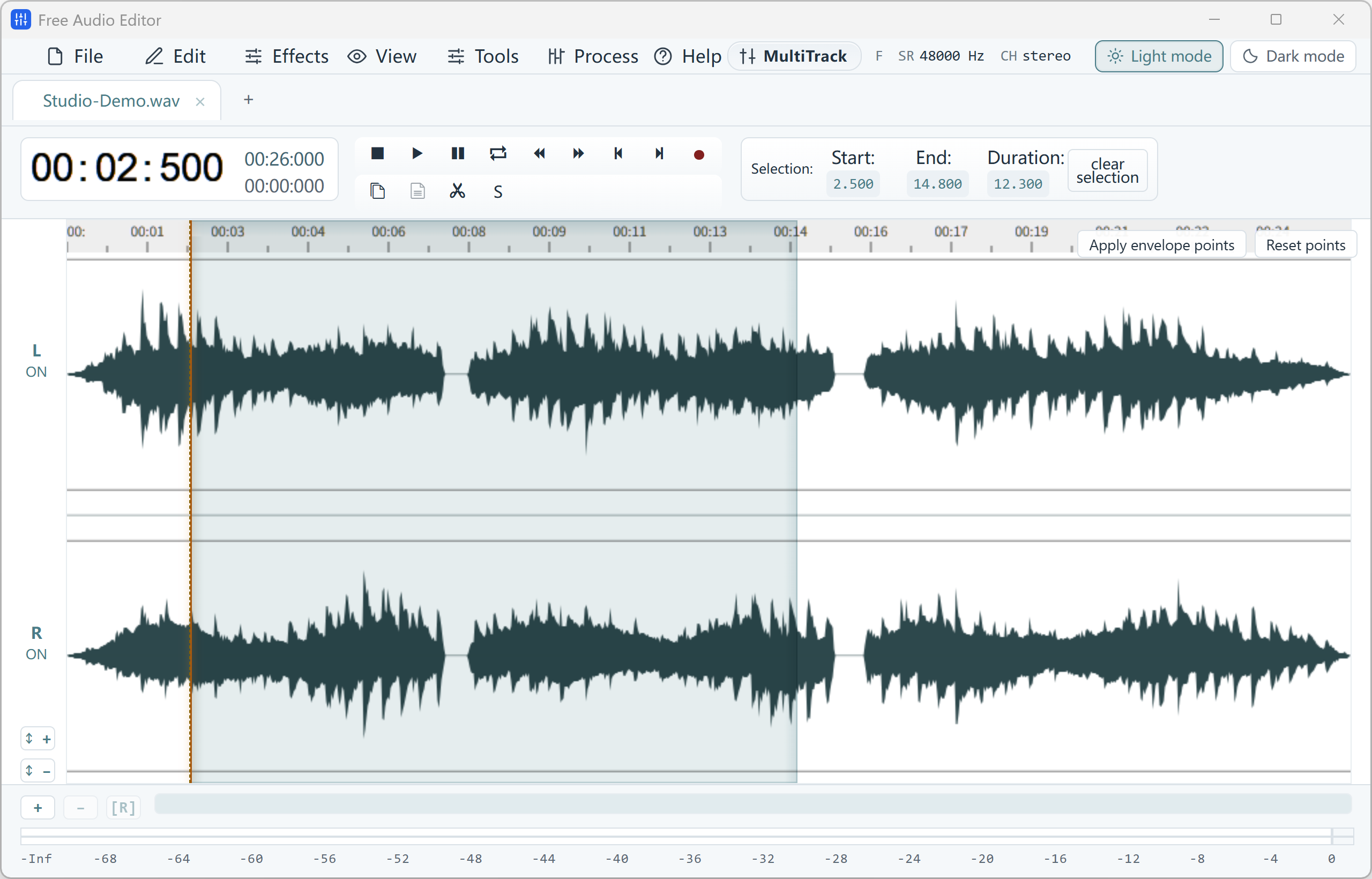
Cut Audio Exactly Where You See It
- Cut and trim — select a region and delete it, or keep only the selection.
- Zero-crossing snap — edits land on silent points, so joins do not click.
- Fade in, fade out and crossfade — smooth starts, endings and joins.
- Export Selection — save only the highlighted part as its own file.
- Split by silence and slice at markers — turn one long recording into many tracks.
- Seamless loops — preview a loop before you save it.
How to Do It in Free Audio Editor (Step by Step)
- Step 1: Open your song
Drag an MP3, WAV, FLAC, M4A, OGG or WMA file into Free Audio Editor.
- Step 2: Select the part
Drag across the waveform. Zoom in to place the start and end precisely.
- Step 3: Add fades
Apply a short fade in and fade out so the clip starts and ends cleanly.
- Step 4: Save it
Use Export Selection to save the clip as WAV for free, then convert it to MP3 if you need one.
Make a Ringtone on Your PC
Pick the 20–30 seconds you want, fade the end, and export the selection. Convert the WAV to MP3 for Android, or to M4R for iPhone, with Free Video & Audio Converter.
Cut Audio from a Video
Free Audio Editor opens MP4, MKV, MOV, AVI and WebM files and puts their soundtrack on the waveform, so you can cut a clip out of a video’s sound. See how to cut audio from a video.
What Is Free, and How to Get MP3 Free
Editing, recording, noise removal, effects, saving projects and exporting WAV are free in Free Audio Editor, with no watermark and no account. Saving directly to MP3, FLAC, AAC or other formats is part of the registered edition.
To stay 100% free, export WAV and convert it to MP3 with our free Free Video & Audio Converter. It converts whole folders at once, up to 320 kbps.
Frequently Asked Questions
Is Free Audio Editor a free MP3 cutter?
Yes. Cutting, trimming, fades and saving the result as WAV are free. To get an MP3, convert the WAV with the free Free Video & Audio Converter, or save MP3 directly with the registered edition.
How do I cut part of a song?
Open the song, drag across the waveform to select the part you want, and use Export Selection to save only that part. Or select the unwanted part and press Delete.
Can I make a ringtone?
Yes. Select 20 to 30 seconds, add a fade out, and use Export Selection. Convert the WAV to MP3, or to M4R for iPhone, with Free Video & Audio Converter.
Can I split one long recording into many files?
Yes. Use Split by silence, or place markers and slice at markers. Marker slices can be exported as separate WAV files for free.
Does cutting add clicks at the edges?
Selections snap to zero crossings to avoid clicks, and you can add a short fade at each edge.
More editing guides: free MP3 editor · join audio files · music editing software.