Method 1: Cut Out Just the Part You Need as MP3
Use this to save one song from a concert video, a quote from an interview or a sound effect from a clip. In Free Video & Audio Converter:
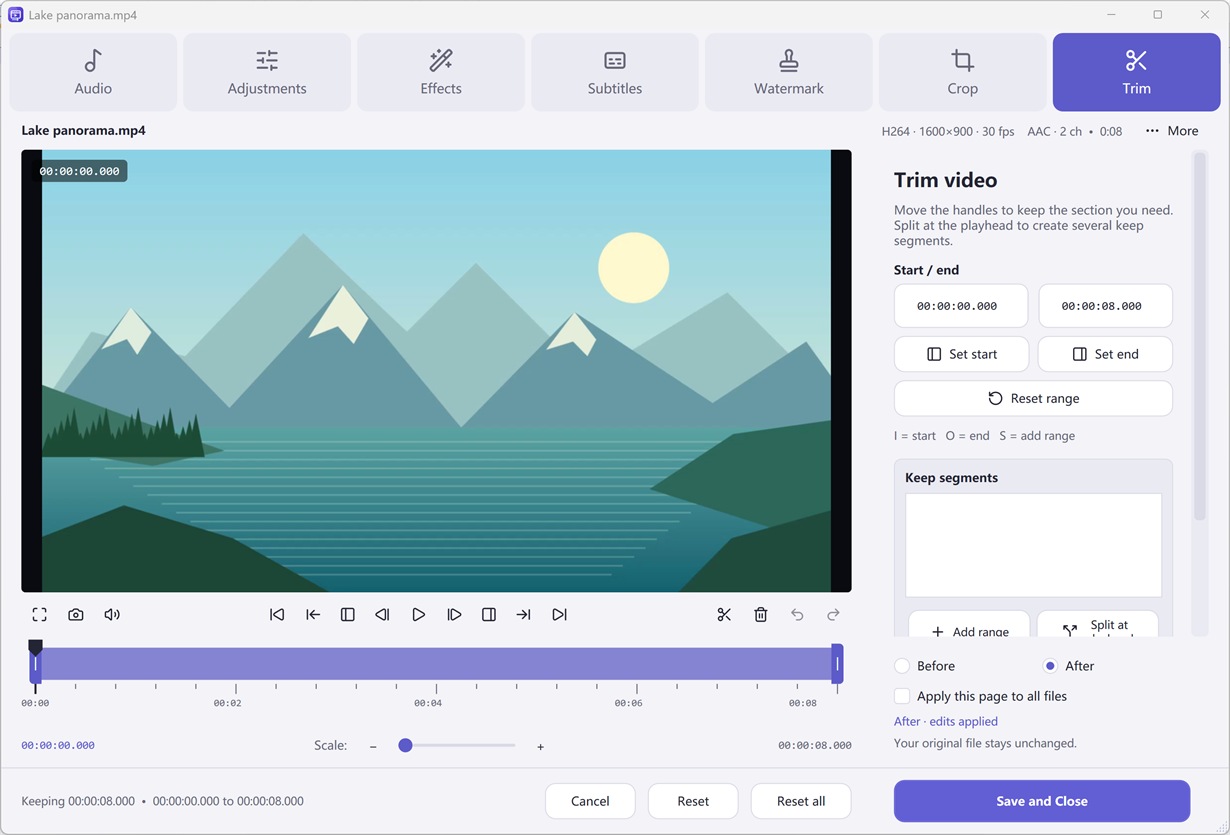
- Add the video (MP4, MKV, MOV, AVI, WMV, WebM and more) and click Edit.
- In Trim, play to the start and press I, play to the end and press O — or type exact times down to the millisecond.
- Need several parts? Add more keep ranges. They can be saved as separate files or joined into one with Merge files.
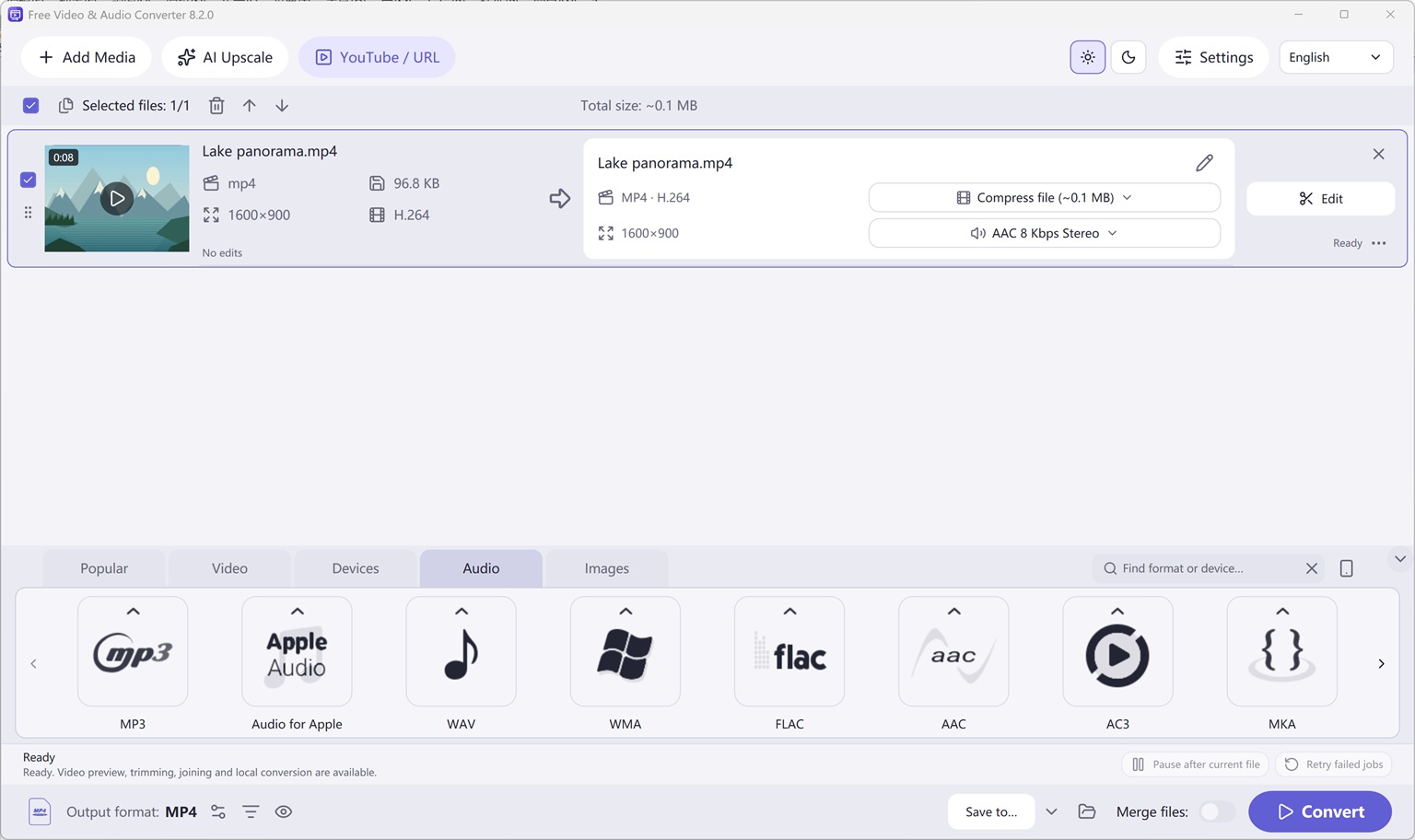
- Click Save and Close, choose Audio > MP3 (or M4A, WAV, FLAC) and click Convert.
Method 2: Extract the Whole Soundtrack
Skip the editor: add one video or a whole folder, choose Audio > MP3 and convert. Pick 256–320 kbps for music, 96–128 kbps for speech, or FLAC/WAV for a lossless copy of the decoded sound. See our MP4 to MP3 guide for quality tips.
Videos with several audio tracks (for example, two languages)? Choose the track you want in the row’s audio track popup before converting.
Method 3: Remove the Audio from a Video
To keep the picture but drop the sound — for a silent background clip or to add new music later — choose a video output such as MP4, then set the audio track to No audio in the row’s audio track popup (or mute the audio in the editor’s Audio tab). When the video stream is compatible, fast conversion can copy it without re-encoding, so the picture quality stays the same.
Method 4: Fine-Edit the Sound on a Waveform
When you need sample-accurate cuts, noise removal or effects, open the video in Free Audio Editor. Its audio track opens as a waveform: zoom in, select exactly the part you want, remove background noise or clicks, add fades, and use Export Selection to save just that part as a WAV file for free.
This is ideal for cutting a clean quote from an interview, removing wind noise from a phone video, or preparing a sound effect for your own video project.
Which Method Should You Use?
| You want to… | Best tool | Output |
|---|---|---|
| Save one part (or several parts) of the sound | Free Video & Audio Converter — Trim | MP3, M4A, WAV, FLAC… |
| Save the full soundtrack of many videos | Free Video & Audio Converter — batch | MP3, M4A, WAV, FLAC… |
| Keep the video, remove the sound | Free Video & Audio Converter — No audio | MP4, MKV, MOV… |
| Clean up and cut precisely on a waveform | Free Audio Editor | WAV free (other formats with upgrade) |
| Grab audio from one short clip, no install | Online audio extractor | In your browser |
How to Do It in Free Video & Audio Converter (Step by Step)
-
Step 1: Add your video
Drag the video into Free Video & Audio Converter and click Edit.
-
Step 2: Mark the part to keep
Use I and O (or exact times) in Trim to set the start and end; add more ranges if needed.
-
Step 3: Choose MP3 and convert
Save and Close, pick Audio > MP3 and click Convert.
Frequently Asked Questions
How do I cut audio from a video for free?
Add the video to Free Video & Audio Converter, open Edit > Trim, mark the start and end of the part you want, choose Audio > MP3 and click Convert. It is free and adds no watermark.
Can I extract several parts of a video’s audio at once?
Yes. Add multiple keep ranges in the trim editor and save them as separate files, or merge them into one audio file.
How do I remove sound from a video?
Choose a video output such as MP4 and set the audio track to No audio, or mute the audio in the editor. The picture is kept and the sound is removed.
Can I do this on Windows 10?
Yes. Both Free Video & Audio Converter and Free Audio Editor run on Windows 10 (version 2004 or later) and Windows 11, 64-bit.