Short answer: to edit songs for free on Windows, use Free Audio Editor: cut and join songs, fade, change speed and pitch, match loudness and mix tracks, then export WAV free and convert it to MP3 free with Free Video & Audio Converter.
Editing Songs vs. Making Music: Pick the Right Tool
If you want to shorten a song, remove an intro, create a ringtone, join tracks for a workout mix or fix the volume, you need a music editor — a waveform editor with a simple multitrack mixer. If you want to compose with virtual instruments, MIDI and drum patterns, you need a DAW (digital audio workstation). Choosing the right type saves hours of learning.
| Software | Type | Best for | Watch out for |
|---|---|---|---|
| Free Audio Editor | Music & audio editor | Cutting and joining songs, fades, loudness, tempo detection, quick mixes | WAV export free; MP3/FLAC export needs an upgrade. No VST plug-ins or MIDI |
| Audacity | Audio editor | Multitrack editing with plug-ins | Older interface, more settings to learn |
| Ocenaudio | Audio editor | Fast single-file edits with real-time preview | No multitrack mixing |
| LMMS | Free DAW | Making beats and electronic music with patterns and a piano roll | Not designed for quick song edits |
| Tracktion Waveform Free | Free DAW | Recording and producing full songs with plug-ins | Steeper learning curve |
What You Can Do with Free Audio Editor as a Music Editor
Free Audio Editor focuses on the everyday music jobs people search for most:
- Cut and trim songs on a zoomable waveform; edits snap to zero crossings to avoid clicks.
- Join songs — concatenate tabs into one track, or insert a file at the playhead with a crossfade in milliseconds.
- Fade in, fade out and crossfade for smooth DJ-style transitions.
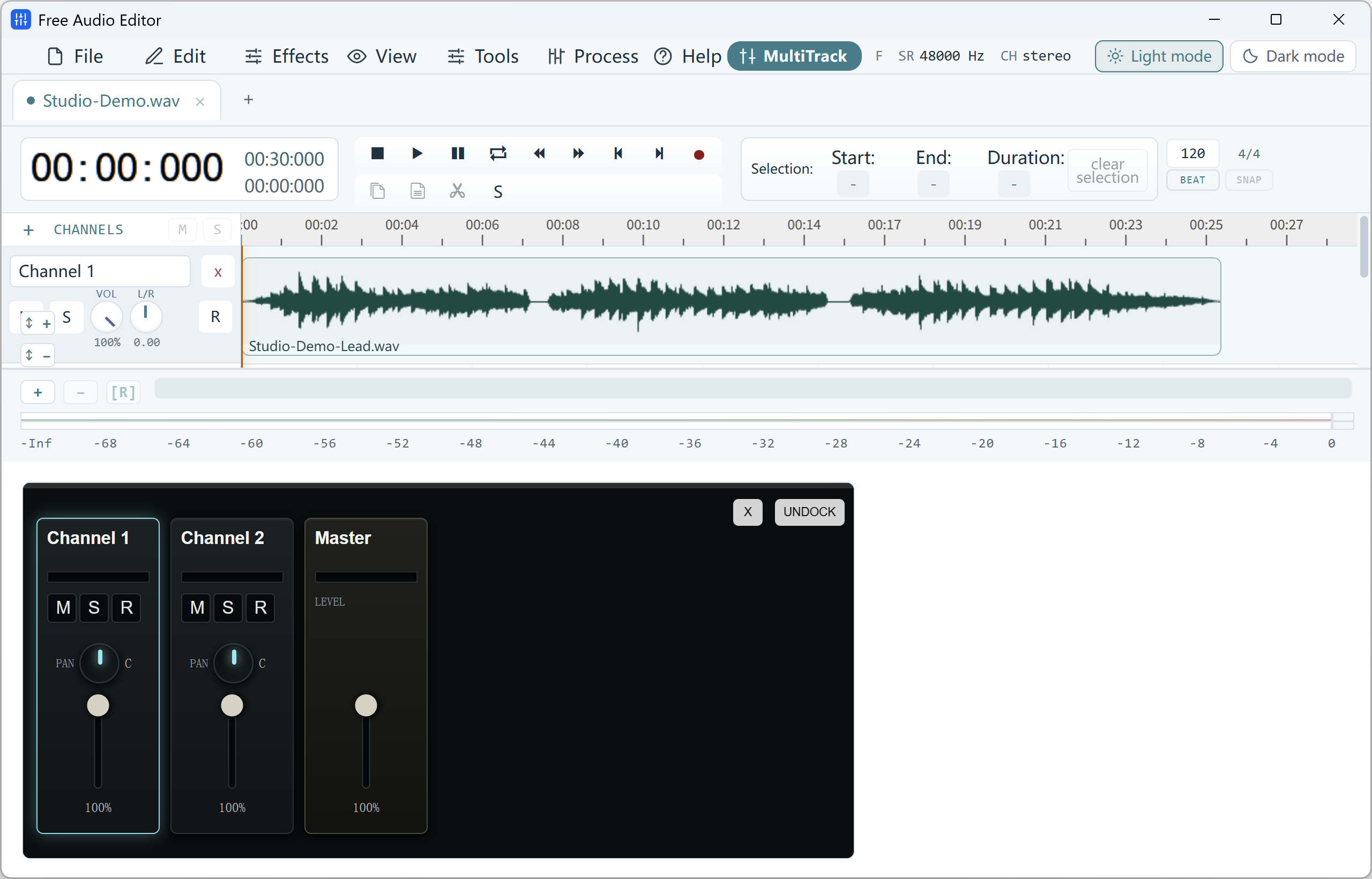
- Mix several songs or a voice-over in the Multitrack Mixer with per-track volume, pan, mute and solo.
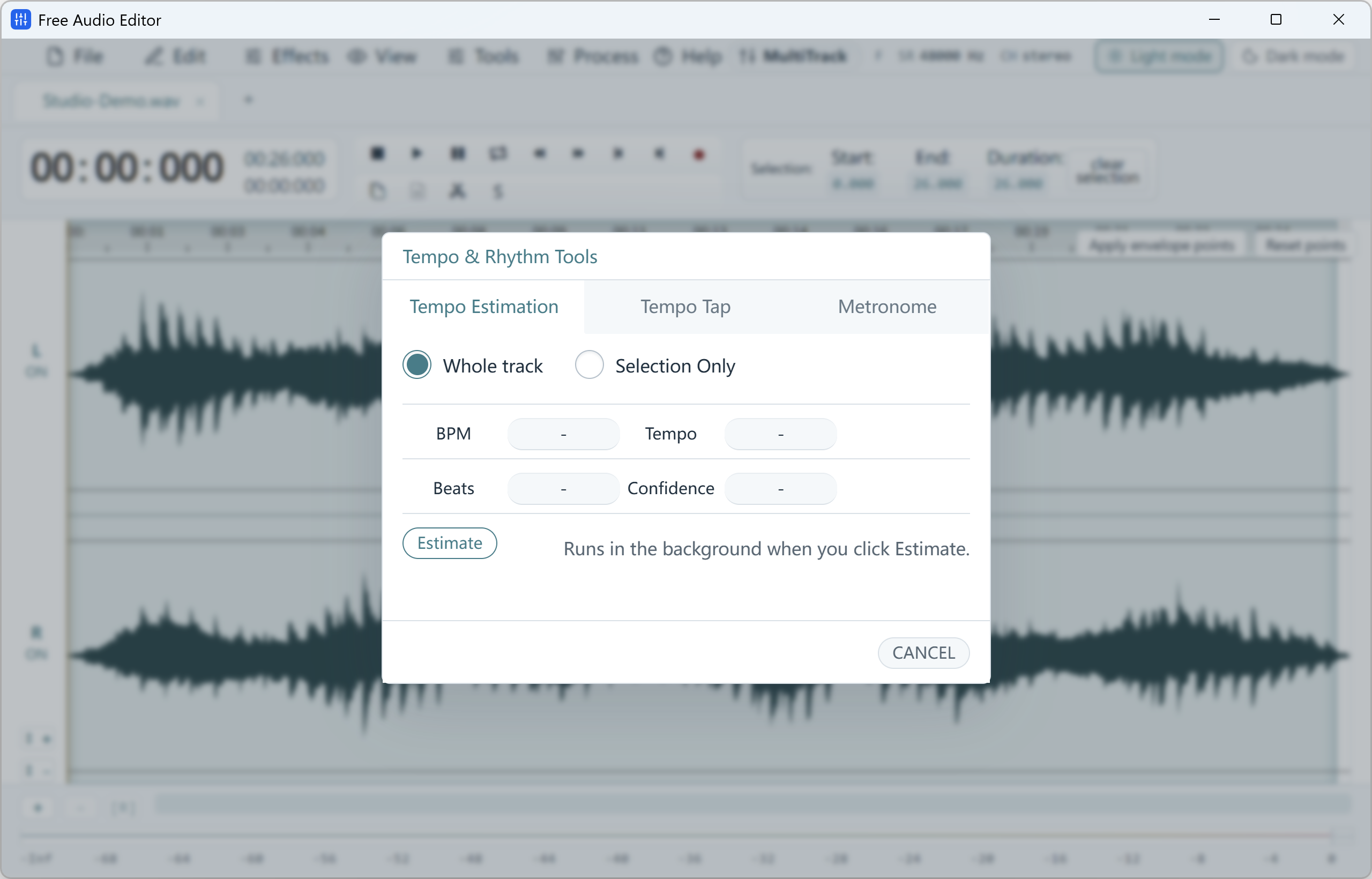
- Find the tempo — BPM estimation, Tempo Tap and a Metronome; beat markers and snapping in the mixer.
- Make tracks equally loud with LUFS loudness matching, Normalize, Compressor and Limiter.
- Shape the sound with a 10/20-band Graphic EQ or Paragraphic EQ, Reverb and Delay.
- Change speed or pitch with the Speed / Playback Rate and Speed Up / Slow Down profile controls — for practising along with a song.
- Make perfect loops of a beat or instrumental with the Seamless Loop dialog.
- Edit MP3 tags — title, artist, album, lyrics and cover art in the ID3 Tag Editor.
Popular Music Editing Projects
Make a ringtone: select the 20–30 seconds you want, add a short fade out and use Export Selection. For an iPhone ringtone, convert the result to M4R with Free Video & Audio Converter.
Build a workout or party mix: place songs one after another in the Multitrack Mixer, overlap their ends and apply a crossfade, then match loudness so no track jumps out.
Cut a song for a video: use the BPM display and beat markers to cut exactly on the beat, so the edit is invisible to the listener.
Clean up a live or rehearsal recording: remove clicks and hum in the Repair Studio, trim the talking between songs, and split the concert into separate tracks with Split by Silence.
One honest limit: Free Audio Editor does not use AI to separate vocals from instruments. It can attenuate a selected frequency band in the spectrogram, but it is not a “vocal remover” for finished songs.
Saving Your Edited Music
Editing, mixing and saving projects are free. Exporting WAV — the lossless format used by CD masters and video editors — is free without registration. To save MP3, FLAC or AAC straight from the editor, upgrade; or export WAV and convert it free with Free Video & Audio Converter at up to 320 kbps.
Tip: keep a WAV master of every edit. Converting MP3 to MP3 again and again slowly reduces quality, while a WAV master can be turned into any format later.
How to Do It in Free Audio Editor (Step by Step)
-
Step 1: Open your songs
Drag MP3, WAV, FLAC, M4A or OGG files into Free Audio Editor — each opens in its own tab.
-
Step 2: Cut, fade and mix
Trim on the waveform, add fades, or arrange several songs in the Multitrack Mixer and crossfade them.
-
Step 3: Match loudness and export
Use Loudness Match (LUFS) or Normalize, then export WAV free or MP3 with the registered edition.
Frequently Asked Questions
What is the best free music editing software for beginners?
For editing existing songs — cutting, joining, fading and fixing volume — a waveform editor such as Free Audio Editor is the easiest place to start. For making music from scratch with instruments and beats, try a free DAW such as LMMS.
Can I edit MP3 songs for free?
Yes. Free Audio Editor opens and edits MP3 songs for free and exports WAV without registration. Convert the WAV to MP3 free with Free Video & Audio Converter, or upgrade to save MP3 directly.
Can I combine two songs into one?
Yes. Open both songs and concatenate the tabs, insert one file into the other with a crossfade, or arrange them on separate tracks in the Multitrack Mixer.
Can free music editing software remove vocals?
Free Audio Editor does not include AI vocal separation. You can reduce a specific frequency band in the spectrogram, but fully removing vocals from a finished song requires a dedicated stem-separation tool.