Free Video & Audio Converter Free Video to MP3 & Audio Converter for PC — Windows 11/10
Convert between MP4, MKV, MOV, AVI, WMV and 428 presets for iPhone, Android and TV,
and save YouTube videos and playlists as MP3. Every conversion is free, with no watermark.
For Windows 11 & Windows 10 (64-bit) · Unified installer for all FAEMedia conversion & extraction tools
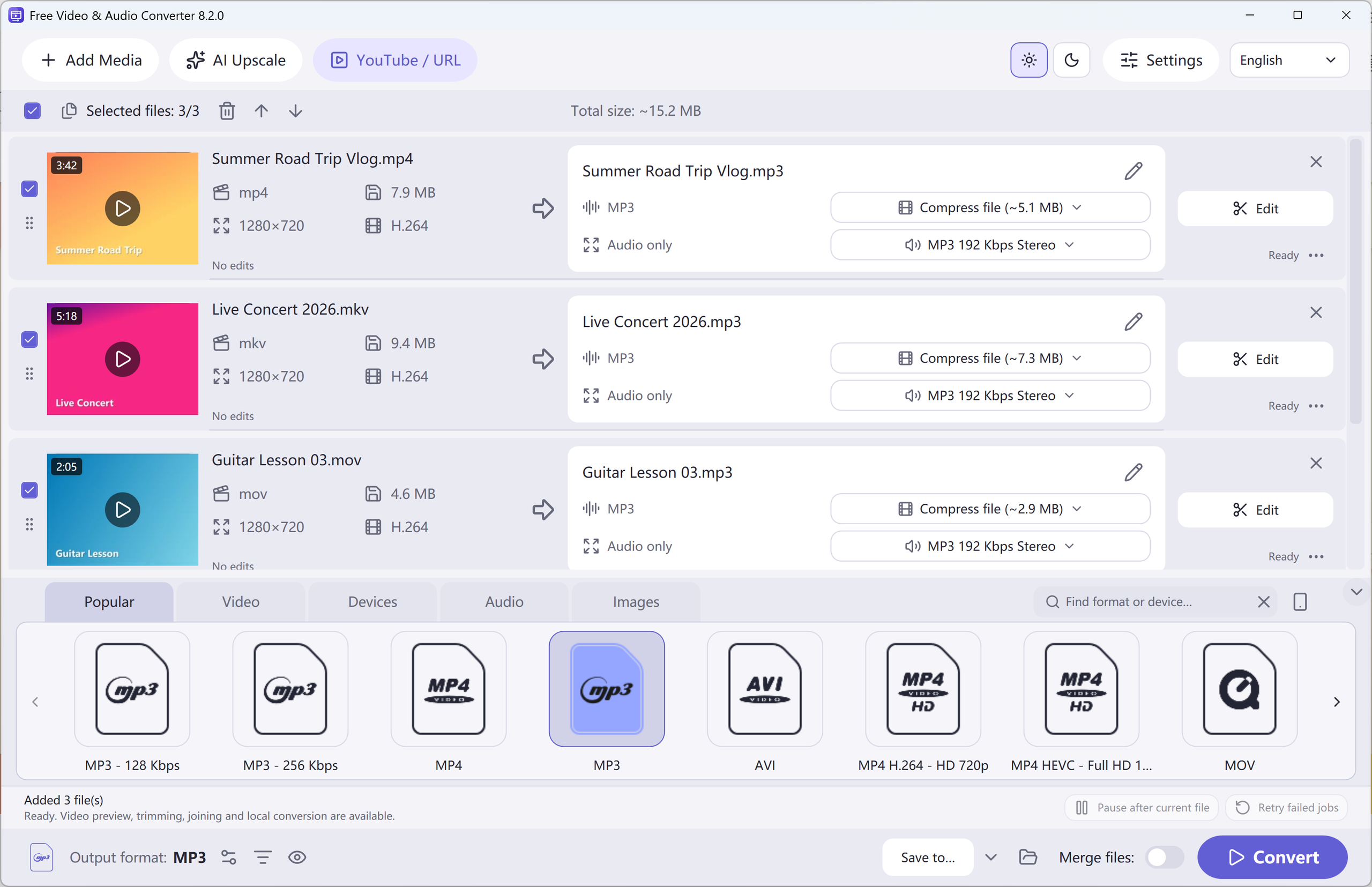
Convert between 428 built-in presets
Queue YouTube videos & playlists
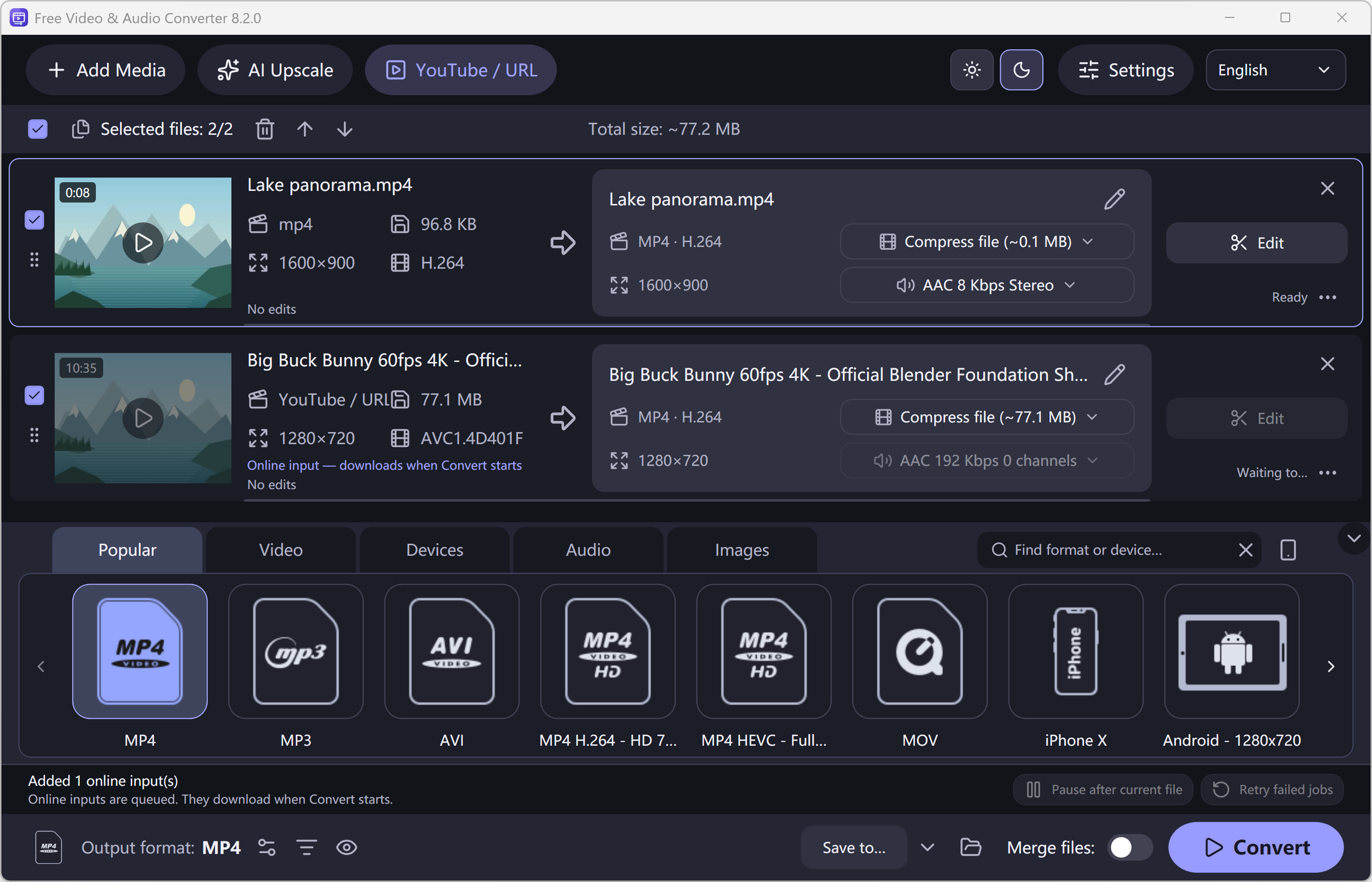
Video & audio converter for any gadget
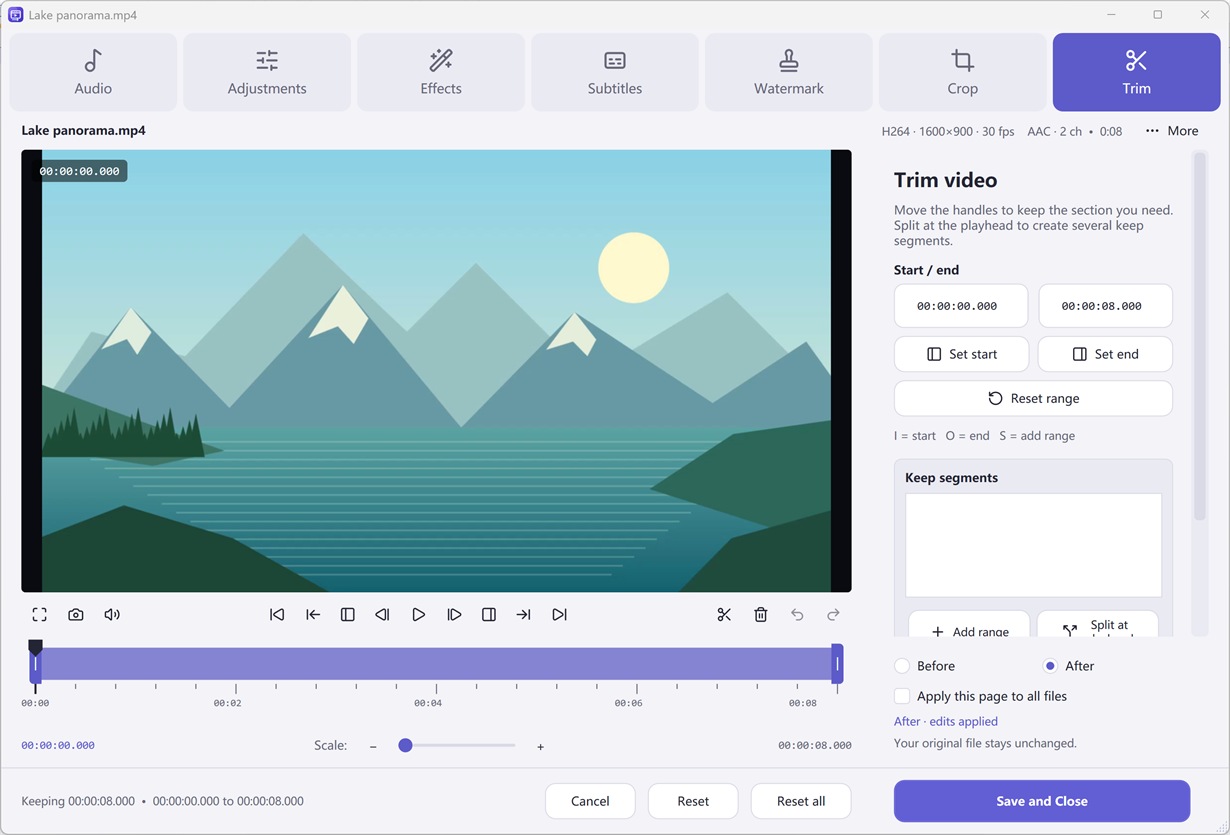
Trim, compress, upscale & burn discs
All-in-one video & audio converter software
Extract MP3, FLAC & WAV from video
Author DVD-Video & Blu-ray discs
Cut, join, crop & rotate clips
Target file-size compression & sample
Convert movies with Subtitle Studio
Local AI upscaling & GPU acceleration
Free Video & Audio Converter is the complete Windows solution
Hardware Accelerated
Supports NVIDIA NVENC, Intel Quick Sync, and AMD AMF hardware encoders plus lossless stream copy for fast desktop conversion.
Simple 3-Click Workflow
Drop files or paste a YouTube URL, pick a preset from Popular, Video, Audio, or Devices, and click Convert.
Batch & Watch Folder
Apply edits across an entire queue, monitor a Watch Folder automatically, save projects, or automate jobs from the command line.
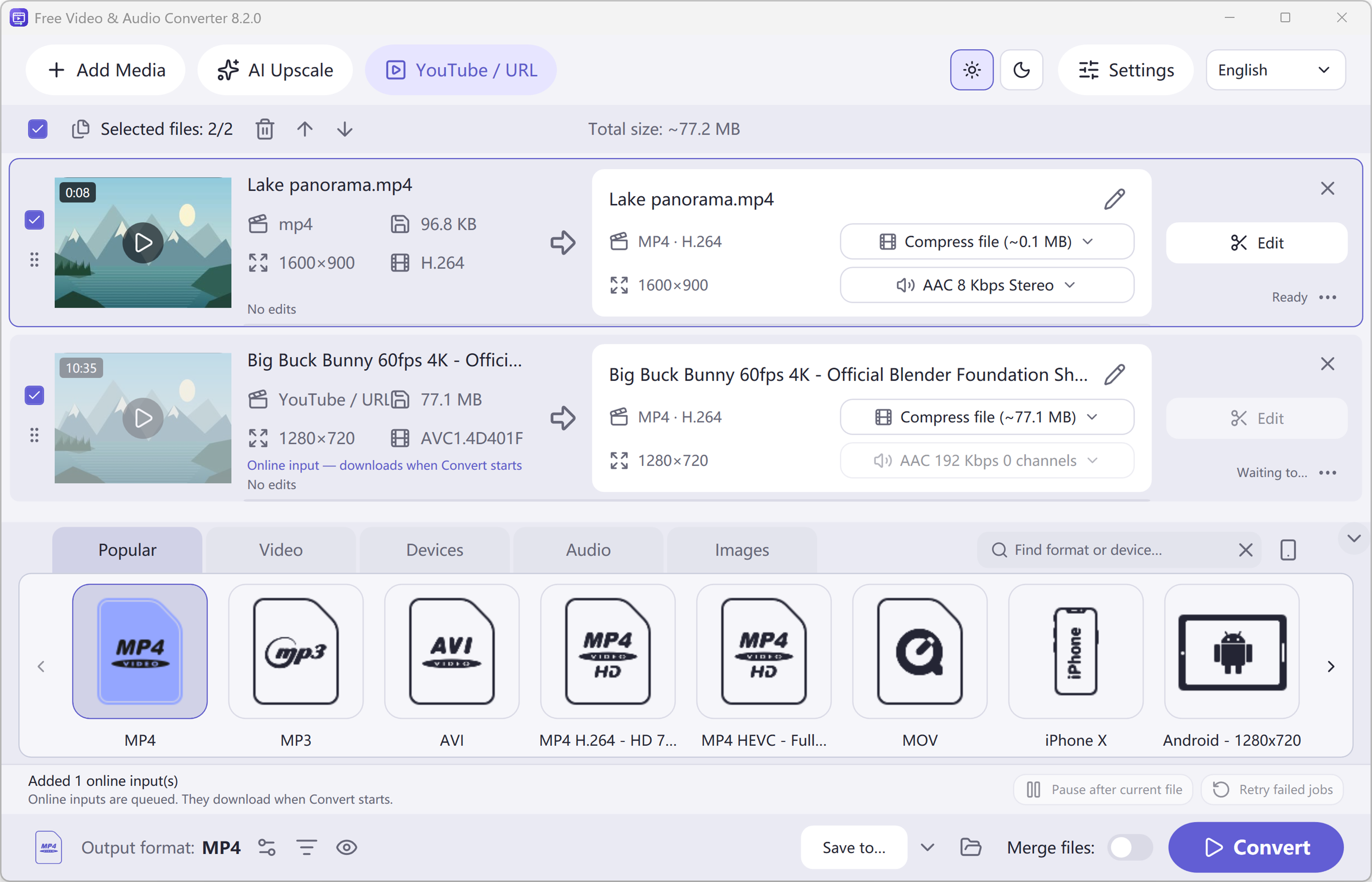
Add your files or URL
Import your videos, audio files, folders, unencrypted DVDs, or paste a YouTube link and click "Read formats".
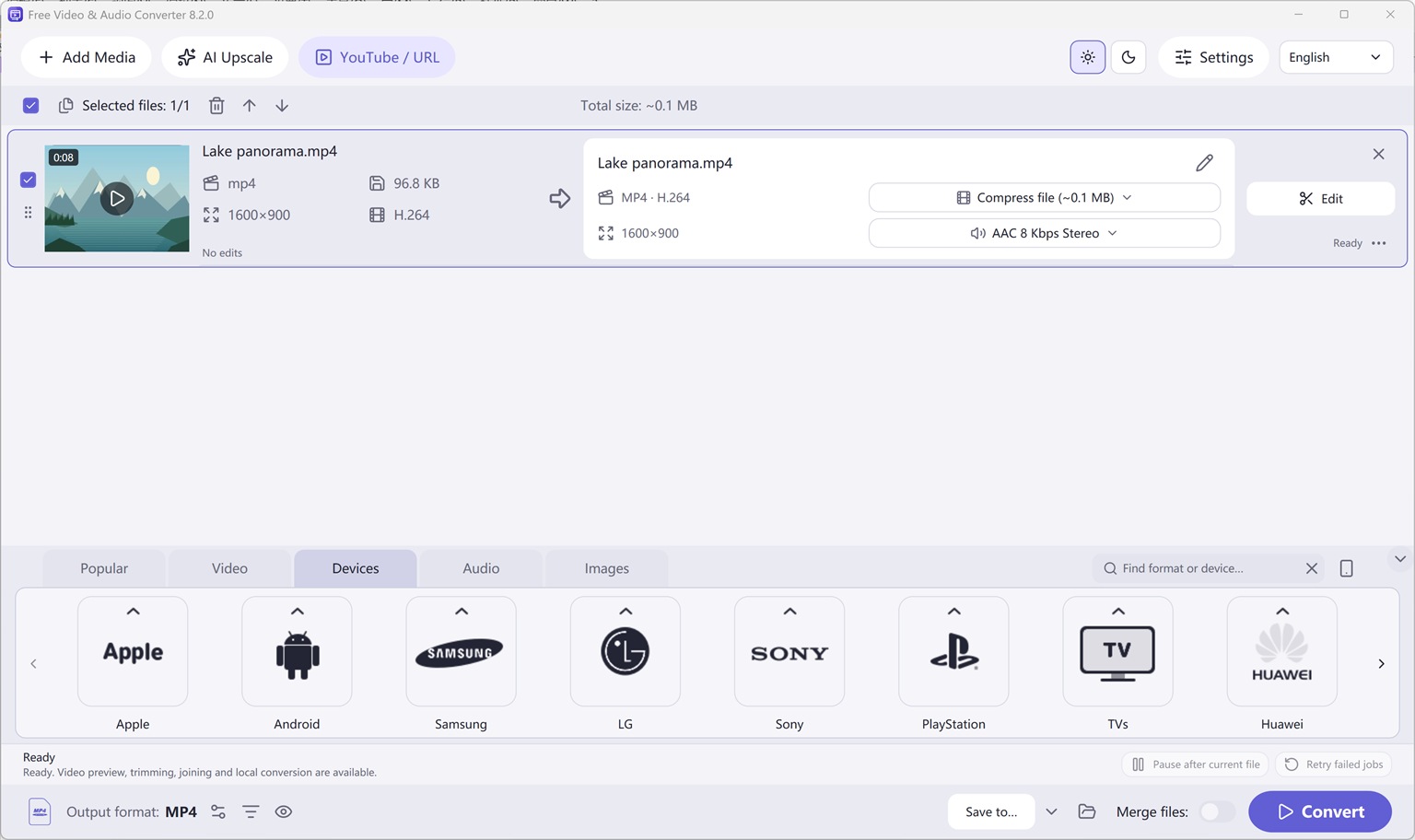
Choose a format or device
Select how you want to encode your files: MP3, MP4, FLAC, WAV, MKV, AVI, Apple, Android, PlayStation, etc.
Click Convert
Use the default preset or customize bitrate/size, then click "Convert" to process your queue at desktop speed.
- Microsoft Windows OS: Windows 11, Windows 10 (64-bit, build 19041+)
- .NET Desktop Runtime 8 x64
- NVIDIA NVENC, Intel Quick Sync & AMD AMF support
- Internet connection for online video URLs & module updates
- DVD/BD drive for physical disc burning
Two Complete Windows Desktop Programs by FAEMedia
Free Audio Editor
Precision stereo waveform & spectrogram editing, microphone + Windows system audio recording, and multi-stage voice cleanup.
- Waveform & Multitrack: Cut, trim, crossfade, zero-crossing snap, seamless loops, markers, and multitrack mixer.
- Repair Studio & Podcast Chain: De-click, de-hum, de-clip, de-ess, de-breath, voice noise reduction, 20-band EQ, compressor & LUFS loudness matching.
- Edition Rights: Audio editing, project saving, and WAV export are free without registration. Registration (Upgrade) unlocks MP3, FLAC, ALAC, AAC, OGG, Opus, WMA & additional export formats.
Free Video & Audio Converter
Unifies Free Audio Converter, Free Video to Audio Converter, Easy Audio Extractor, Easy Video Switch, and Easy YouTube to MP3 Converter in one application.
- 428 Built-in Presets: Convert video (MP4, MKV, MOV, AVI, HEVC, AV1), audio (MP3, FLAC, WAV, AAC, M4A, OGG, Opus, WMA) & device profiles.
- Edit, Compress & Upscale: Trim, merge, crop, add subtitles or watermarks, target file-size compression, local AI upscaling & DVD/Blu-ray authoring.
- YouTube Queue & Free Export: Read online video or playlist formats, add to queue, and convert. All supported conversion & export features are free.
Try It Online — or Get the Full Version Free
Online Audio Editor
Short clip waveform preview in browser. Full recordings & Repair Studio in desktop app.
Online Audio Converter
Convert short WAV, M4A, FLAC, or OGG clips to MP3 in browser.
Online Video to Audio
Turn a short MP4, MOV, or WebM into MP3 in your tab.
Online Audio Extractor
Pull a short soundtrack segment with fade controls.
Online Video Converter
Convert a short video clip to MP4 or WebM in browser.
Popular Conversions
Frequently Asked Questions
Is Free Video & Audio Converter really free?
Yes. Every conversion and export feature is free — no trial, no watermark, no registration.
How do I convert a video to MP3 on my PC?
Install Free Video & Audio Converter, drag your videos into the window, click Audio > MP3, choose a quality such as 320 kbps and click Convert. See the MP4 to MP3 guide.
Can I convert many videos to MP3 at once?
Yes. Add multiple files or whole folders and convert the entire list in one batch.
Does it work on Windows 10 and Windows 11?
Yes — Windows 11 and Windows 10 64-bit (version 2004 or later).
Can it convert YouTube videos and playlists to MP3?
Yes. Click YouTube / URL, paste a public video or playlist link (up to 100 videos), click Read formats, add to the queue, choose MP3 and click Convert. Private, members-only or DRM-protected videos are not supported.
Should I use the online converter or the desktop app?
Our online video to audio converter is handy for one short clip. For large files, batches, YouTube playlists and editing, the free desktop app is much faster.