Overview: How to Trim an MP3 or WAV File on Windows 11 with Millisecond Precision
Cut unwanted sections, snap selections to zero crossings, apply fade envelopes, and export clean audio on your PC.
With Free Audio Editor, you get a complete stereo waveform and spectrogram editor, native microphone + WASAPI system loopback recorder, 5-stage Repair Studio, Podcast Chain, and Multitrack Mixer on Windows 11 and Windows 10. Audio editing, project saving (.wsmith), and WAV export are free without registration; registration unlocks MP3, FLAC, AAC, and 58 export definitions.
How to Do It in Free Audio Editor (Step by Step)
-
Step 1: Download & Launch the Windows Installer
Install and open Free Audio Editor on Windows 11 or Windows 10.
-
Step 2: Load Your Audio or Video File
Drag and drop your media files directly into the workspace.
-
Step 3: Process & Export Locally
Apply your edits or cleanup with live preview, then save to WAV (free) or registered export formats.
Menu names in the guide below may differ slightly from the current version. In Free Audio Editor, most commands are under Edit, Effects, Process and Tools — or press Ctrl+K to search for any command.
More Details & Tips
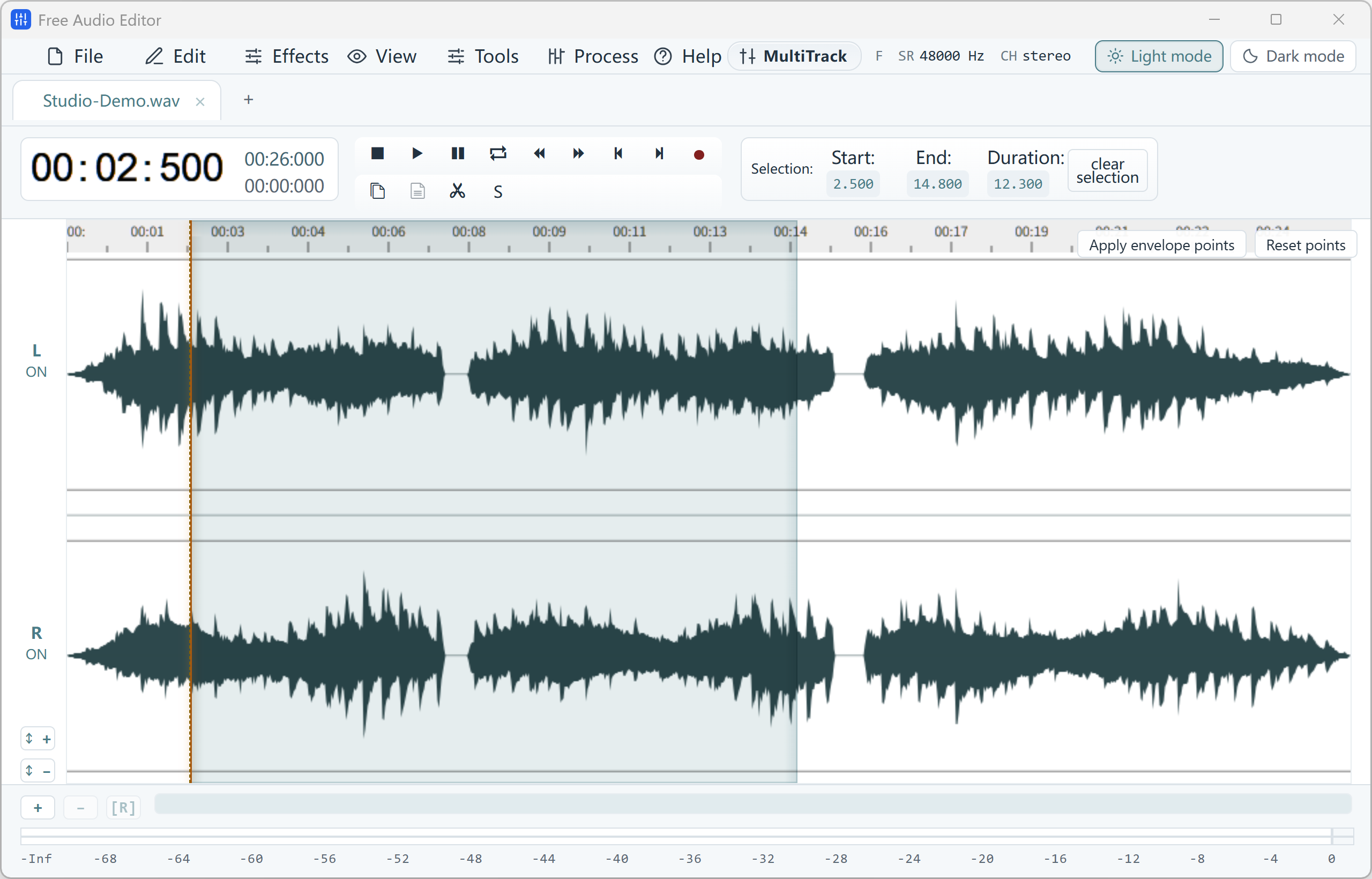
To trim an MP3 on Windows 11, open a copy of the file, select the part you want to keep on the waveform, crop to that selection, and save a new MP3. Windows 11 does not include a reliable MP3 trimmer. Voice Recorder is for microphone recordings. Movie Maker is no longer part of Windows. A waveform editor is the method that still matches the file you actually have.
Trim an MP3 in Free Audio Editor
- Copy the MP3 first. Name the copy something like song-trim.mp3 so the original stays untouched.
- Install and open Free Audio Editor. Choose Home, then Open, and select the copy.
- Play the file and note the time where the keep-section starts and ends. Zoom in until the waveform shows the gap or the breath you are using as a landmark.
- Select that region. Any of these works:
- Drag with the left button along the waveform.
- Move the sliders under the waveform.
- Type the start, end, and length at the bottom of the editor.
- Press Ctrl+A only if you mean the entire file.
- Listen to the selection alone before you cut. The start of a word is easy to miss when you are looking at the waveform instead of hearing it.
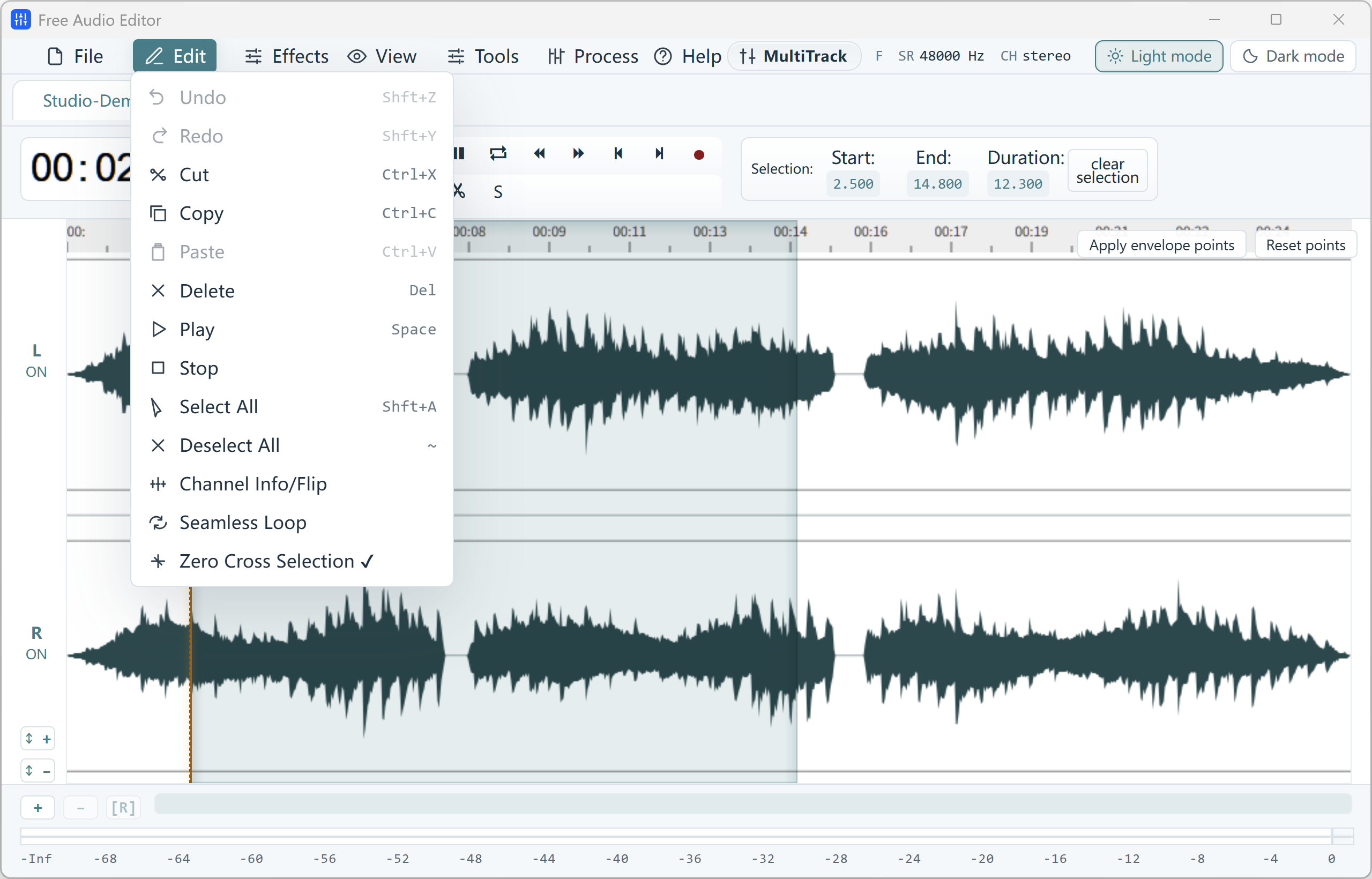
- Open the Edit tab and crop the file to the selection. Crop keeps what is selected and removes the rest. Delete does the opposite: it removes the selection and keeps everything around it. Use Delete when you are cutting a chunk out of the middle, and Crop when you are keeping one clip.
- If the new start or end clicks, select a short slice at that edge, open Effect, and choose Fade In/Out. Preview, then OK.
- Go back to Home and choose Save File As, not Save. Pick a folder, choose MP3, and set the quality. For a music clip, 192 kbps or higher is a safe share copy. For speech, 128 kbps is usually enough.
- Play the new file from the start and from a second before the end. Undo is still available before you close the project if a word got chopped.
Trim a short clip in the browser first
If the piece you need is under about 4 minutes and about 12 MB, you can mark the same kind of selection in the online audio editor and export once. The online editing guide covers that preview. A full song, a show, or any file you need to keep should go through the Windows app, because the browser tab does not store the project.
Cut out the middle instead of the ends
Select only the part you want to remove, then use Edit, Delete. Leave a little room around the words on either side of the cut. A cut that starts exactly on a consonant often clips the end of the previous word. Zoom in, delete the pause, then listen to the join. A very short fade on each side of the join hides a pop. The silence guide goes further on long pauses.
Mistakes that ruin a trim
- Saving over the original. Save File As writes a second file. Save replaces the one you opened.
- Trusting a clock time from a video player. The editor’s own time display is the one that matches the waveform.
- Cropping when you meant to delete the middle. If the file suddenly becomes only the mistake, Undo and switch command.
- Exporting a music clip at a very low bitrate. The trim can be perfect and the file can still sound dull.
Frequently asked questions
Can I trim an MP3 without installing software?
A short file can be trimmed in the browser preview. Longer files, and anything you want stored on the PC, belong in Free Audio Editor.
Does Voice Recorder trim MP3 files on Windows 11?
Voice Recorder records from the microphone and trims its own recordings. It is not a general MP3 editor. Open the MP3 in an audio editor instead.
Will trimming reduce the sound quality?
The cut itself does not filter the audio. Saving again as MP3 does compress the file once more. Keep a WAV copy if you expect to trim, fade, and export several times. One export to MP3 at the end is the clean way.
Can I save only the selection?
Yes. Home, Save Selection As writes the selected region to a new file and leaves the rest of the project in the editor.
Related: fade in and fade out, make a quiet file louder.