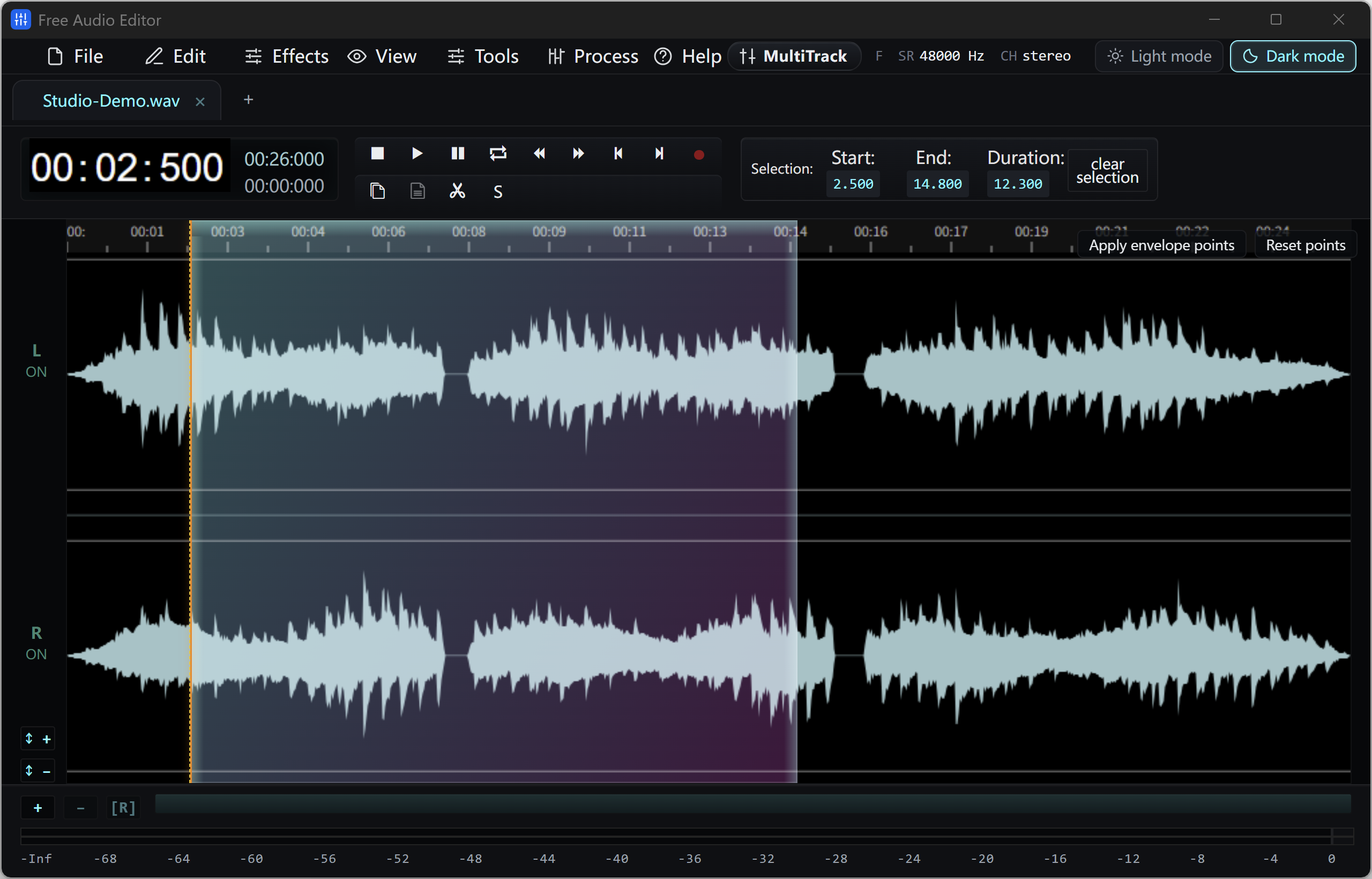
Overview: How to Edit Audio Online (Browser Preview) vs. Desktop Windows App
Understand when to use our 4-minute browser preview vs. downloading Free Audio Editor for full files and voice cleanup.
With Free Audio Editor, you get a complete stereo waveform and spectrogram editor, native microphone + WASAPI system loopback recorder, 5-stage Repair Studio, Podcast Chain, and Multitrack Mixer on Windows 11 and Windows 10. Audio editing, project saving (.wsmith), and WAV export are free without registration; registration unlocks MP3, FLAC, AAC, and 58 export definitions.
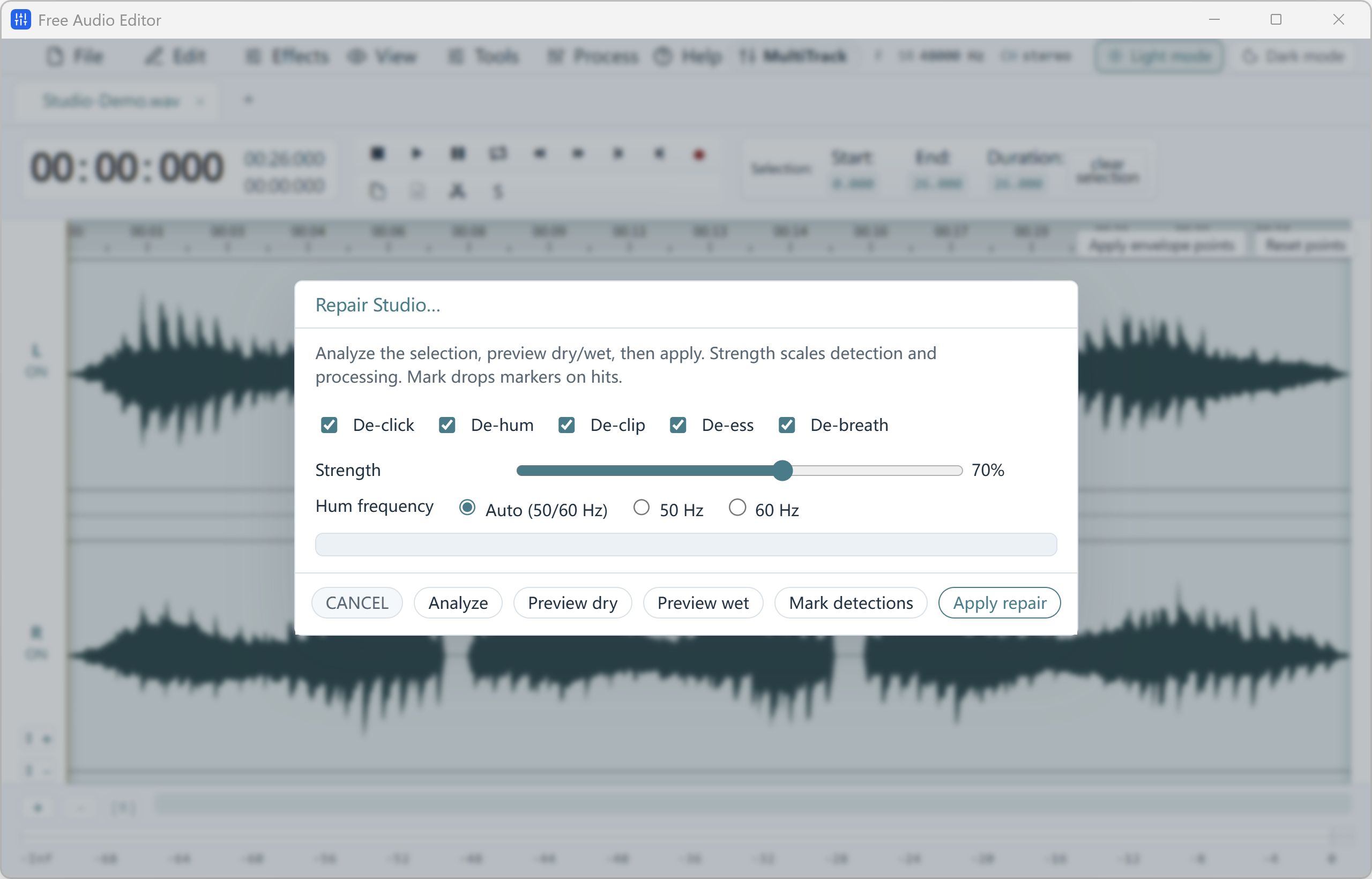
How to Do It in Free Audio Editor (Step by Step)
-
Step 1: Download & Launch the Windows Installer
Install and open Free Audio Editor on Windows 11 or Windows 10.
-
Step 2: Load Your Audio or Video File
Drag and drop your media files directly into the workspace.
-
Step 3: Process & Export Locally
Apply your edits or cleanup with live preview, then save to WAV (free) or registered export formats.
Menu names in the guide below may differ slightly from the current version. In Free Audio Editor, most commands are under Edit, Effects, Process and Tools — or press Ctrl+K to search for any command.
More Details & Tips
You can edit a short clip in the browser with no install and no upload. Open the online audio editor, drop in a small file, select the part you want, and export. That is the whole preview.
It is the wrong tool for a full podcast, a noisy interview, or a recording of what is playing on the PC. Those stay on the computer. Download Free Audio Editor for Windows 11/10 and keep the file on disk.
Edit a short clip online
- Open the online audio editor in Chrome or Edge.
- Click the page and choose a file, or drop an MP3, WAV, or another common audio file onto the waveform. Stay under about 12 MB and about 4 minutes.
- Press Play and note where the clip should start and end. The time display sits above the waveform.
- Drag across the waveform to select that region. You can also type a start and an end if you already know the times.
- Use Edit to cut, trim, or delete the selection. Use a short fade from Effects if the new edge clicks.
- Use File, then Export, and save the result. The browser downloads one file. It does not store the project.
Nothing is uploaded. The audio is decoded in the tab. Close the tab and the edit is gone, which is why a short preview is the right use.
What the top online editors get right
The pages that rank for “online audio editor” all do the same few things well: a waveform you can see, a selection you can drag, a handful of steps, and a straight answer to “do I have to install anything?” This guide keeps that path, and it also says where the path stops.
- No account and no upload for the preview.
- The selection is the part you keep or the part you remove. Listen to the edge before you export.
- A fade of a fraction of a second hides a click at a cut.
- Export once, then listen to the downloaded file, not only to the preview in the tab.
When the browser preview is enough
- You need the first 30 seconds of a song for a talk.
- You want to hear a cut before you commit to it.
- The file is short, and you do not need to record or remove noise.
When to use the Windows app instead
Download the editor if any of these are true:
- The file is longer than about 4 minutes, or larger than about 12 MB. The online editor can show the waveform, but it will not export past that preview limit.
- You need the file tomorrow. A browser tab is not a save.
- You need to remove background noise, record system audio, or raise the volume without clipping.
- The material is private. A desktop editor never sends the recording anywhere.
In Free Audio Editor the same job is: Home, Open, drag a region on the waveform, Edit, then Home, Save File As. Save File As writes a new file and leaves the original alone.
A clean cut
Zoom until the click or the breath is visible. Select only that piece. Cutting a wider region “to be safe” removes the start of the next word. If the new join pops, select a tenth of a second on either side of the join and apply a short fade. Then export and listen on headphones.
Frequently asked questions
Is the online audio editor free?
Yes. The browser preview does not ask you to create an account. The Windows app on this site is a free download as well.
Do I have to install anything to try a clip?
No. The preview runs in the browser. Install Free Audio Editor when you need the full file, recording, or noise removal.
Is my audio uploaded?
No. The online editor decodes the file in the tab. Do not put a private interview in a random converter that asks you to upload it.
Which formats can I open?
The preview opens the common files a browser can decode, including MP3 and WAV. The Windows app also opens a much wider set, including FLAC, OGG, AAC, WMA, and others, and it can save MP3, WAV, WMA, or OGG.
Why will a long file not export?
The online tool is a preview: about 12 MB and about 4 minutes. Past that, open the file in the Windows app.