Overview: How to Make Audio Louder Without Distortion (Normalize, Compressor & LUFS)
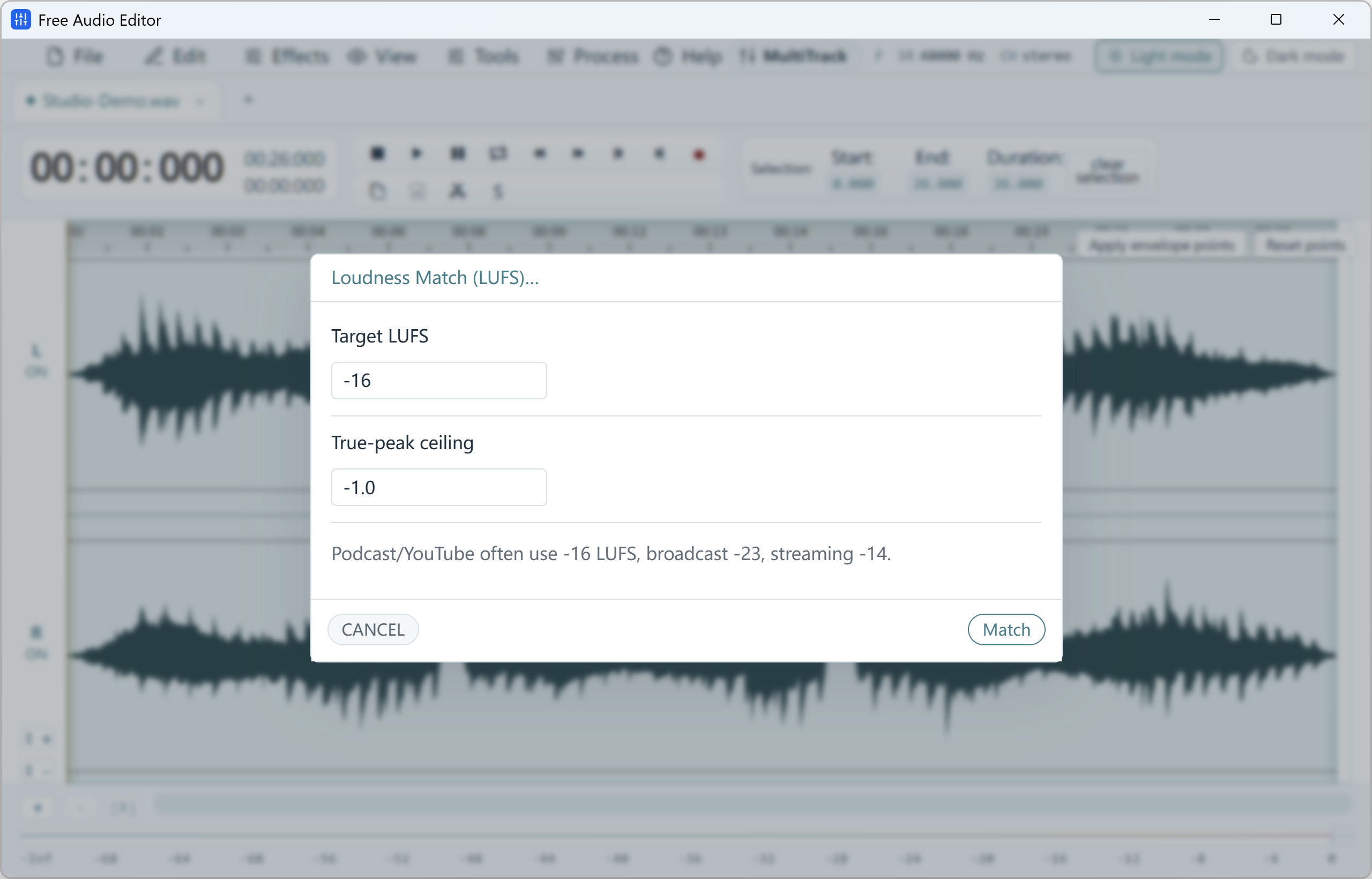
Boost quiet recordings safely using Peak Normalization, Compressor, Hard Limiter, and -16 LUFS Loudness Matching.
With Free Audio Editor, you get a complete stereo waveform and spectrogram editor, native microphone + WASAPI system loopback recorder, 5-stage Repair Studio, Podcast Chain, and Multitrack Mixer on Windows 11 and Windows 10. Audio editing, project saving (.wsmith), and WAV export are free without registration; registration unlocks MP3, FLAC, AAC, and 58 export definitions.
How to Do It in Free Audio Editor (Step by Step)
-
Step 1: Download & Launch the Windows Installer
Install and open Free Audio Editor on Windows 11 or Windows 10.
-
Step 2: Load Your Audio or Video File
Drag and drop your media files directly into the workspace.
-
Step 3: Process & Export Locally
Apply your edits or cleanup with live preview, then save to WAV (free) or registered export formats.
Menu names in the guide below may differ slightly from the current version. In Free Audio Editor, most commands are under Edit, Effects, Process and Tools — or press Ctrl+K to search for any command.
More Details & Tips
To make an audio file louder on Windows 11, change the file itself. The volume keys and Loudness Equalization only affect playback on that PC. They do not change the MP3 you email or upload. In Free Audio Editor you raise the amplitude of a copy, preview it, and save a new file before the peaks flatten.
Three different jobs
- Playback on this computer. The speaker icon, the app volume mixer, and Windows Loudness Equalization change what you hear now. The file is unchanged.
- A quiet recording. Amplify or normalize the audio, then export. This is the job below.
- A whole album at uneven volume. Peak normalizing every song to the maximum makes the already-loud songs harsher. Match them by ear, a few decibels at a time, instead of pushing every file to the ceiling.
Make a file louder
- Copy the file. Work on the copy. Name the result interview-louder.wav or similar.
- Open the copy with Home, Open. If you still have an original WAV, edit that. Raising an MP3 and saving MP3 again compresses the audio a second time.
- Listen once and find the loudest moment, not only the quiet part you wish were louder. That loud moment is what will distort first.
- Press Ctrl+A to select the whole file, or drag to select only the quiet region if the rest is already loud enough.
- Open the Effect tab and choose the amplitude control (Amplitude and Compression). Start with a small increase. Use Preview.
- Watch the waveform. Peaks should get taller and still stop short of the top edge. If the tops turn into flat shelves, you have clipped the audio. Undo and use a smaller increase.
- Play the result on headphones and on speakers. A file that sounds fine on a laptop speaker can be harsh on headphones.
- Choose Home, Save File As. Keep WAV if you will edit again. Choose MP3 only for the copy you will share, and pick a quality preset rather than the smallest file.
Clean noise before you boost
Amplification raises the voice and the hiss together. If the quiet parts are mostly fan noise or room tone, reduce that noise first, then raise the level. Boosting first makes the noise-reduction step harder.
One quiet sentence in a loud file
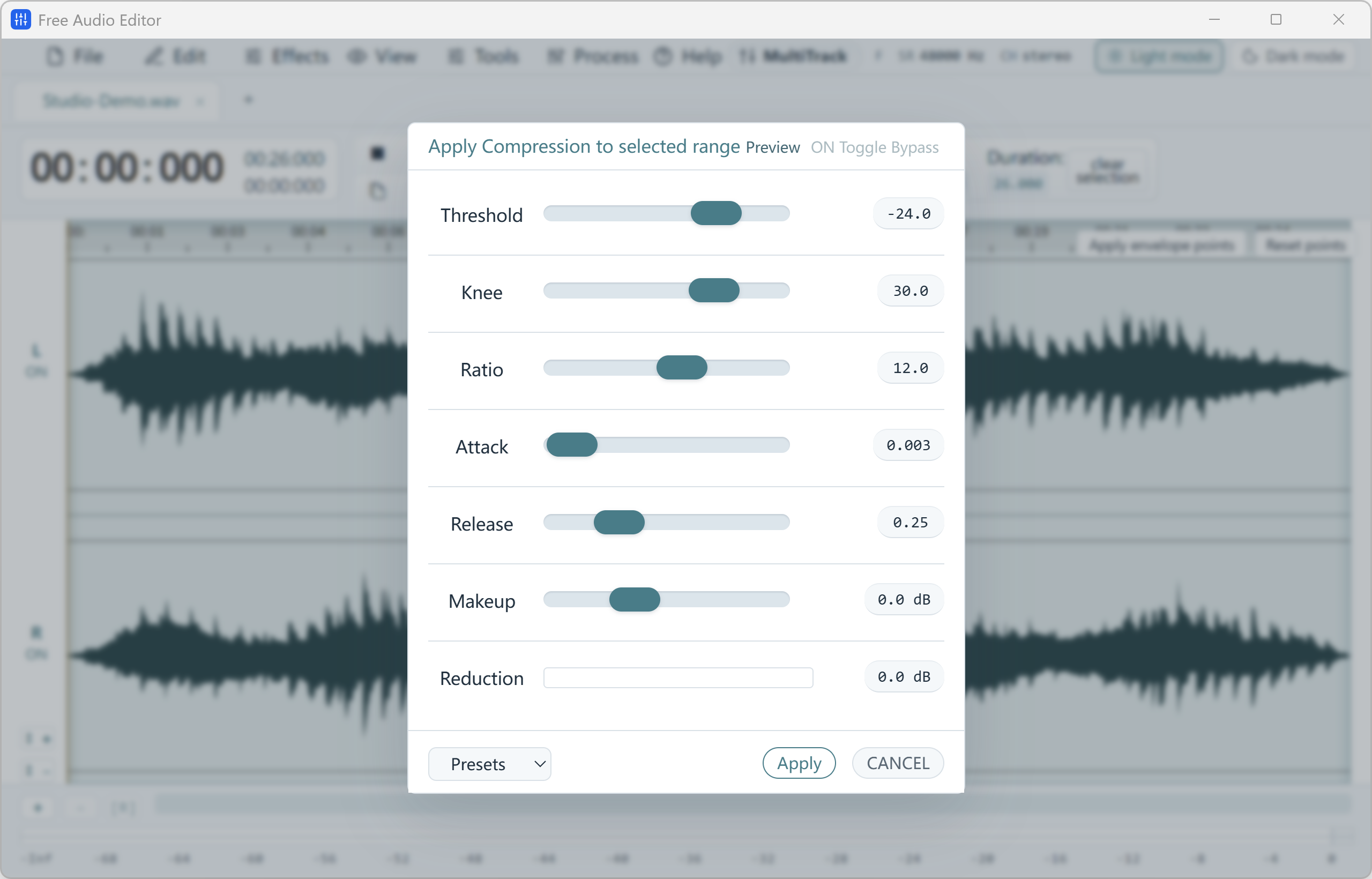
Do not amplify the entire file to rescue one sentence. Select that sentence, apply a small amplitude increase, and preview the words on either side so the jump in level is not obvious. A compressor in the same Amplitude and Compression group can even out a voice that swings between whisper and shout. Use Preview and a light setting. Heavy compression pumps the background noise up between words.
Frequently asked questions
Why does the file sound distorted after I made it louder?
The peaks were already near the maximum, and the extra gain flattened them. Undo, or reopen the copy you saved, and use a smaller increase. Distortion that was saved into the file is part of the audio.
Will Windows volume boost fix an MP3?
No. It only plays the current output louder. The person you send the file to still hears the original level.
Should I normalize every track to the maximum?
No. Maximum peak level is not the same as sounding equally loud. A whisper normalized to the ceiling becomes harsh noise. Raise the quiet file until it matches the others, and leave a little headroom.
Can I do this to a short clip online?
A short, non-private clip can be checked in the online audio editor. The lasting copy, and any file you do not want in a browser tab, should be exported from the Windows app.