Overview: How to Remove Silence or Split Long Recordings by Silence on PC
Automatically strip dead air or slice long multi-part recordings at silent gaps into numbered WAV files.
With Free Audio Editor, you get a complete stereo waveform and spectrogram editor, native microphone + WASAPI system loopback recorder, 5-stage Repair Studio, Podcast Chain, and Multitrack Mixer on Windows 11 and Windows 10. Audio editing, project saving (.wsmith), and WAV export are free without registration; registration unlocks MP3, FLAC, AAC, and 58 export definitions.
How to Do It in Free Audio Editor (Step by Step)
-
Step 1: Download & Launch the Windows Installer
Install and open Free Audio Editor on Windows 11 or Windows 10.
-
Step 2: Load Your Audio or Video File
Drag and drop your media files directly into the workspace.
-
Step 3: Process & Export Locally
Apply your edits or cleanup with live preview, then save to WAV (free) or registered export formats.
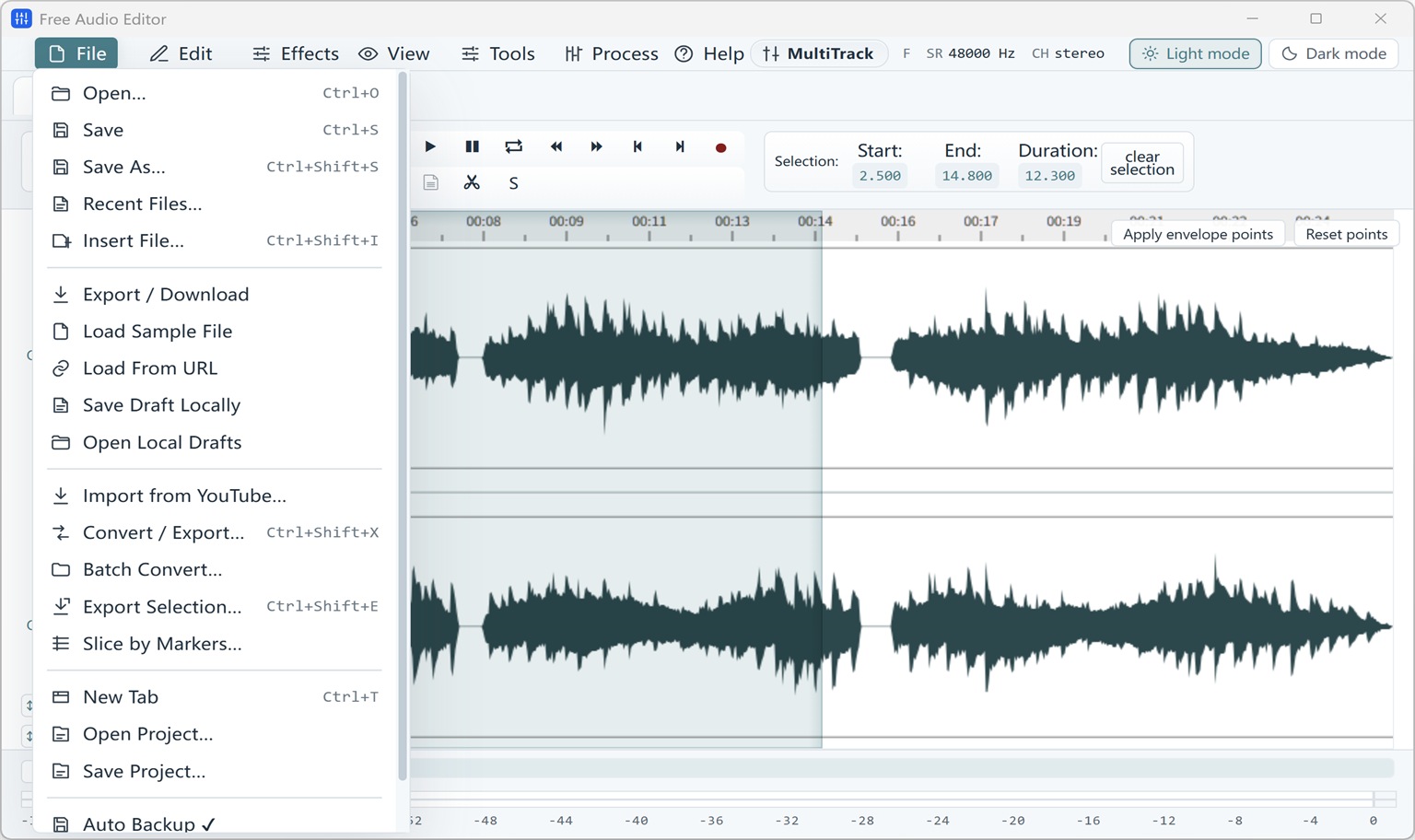
Menu names in the guide below may differ slightly from the current version. In Free Audio Editor, most commands are under Edit, Effects, Process and Tools — or press Ctrl+K to search for any command.
More Details & Tips
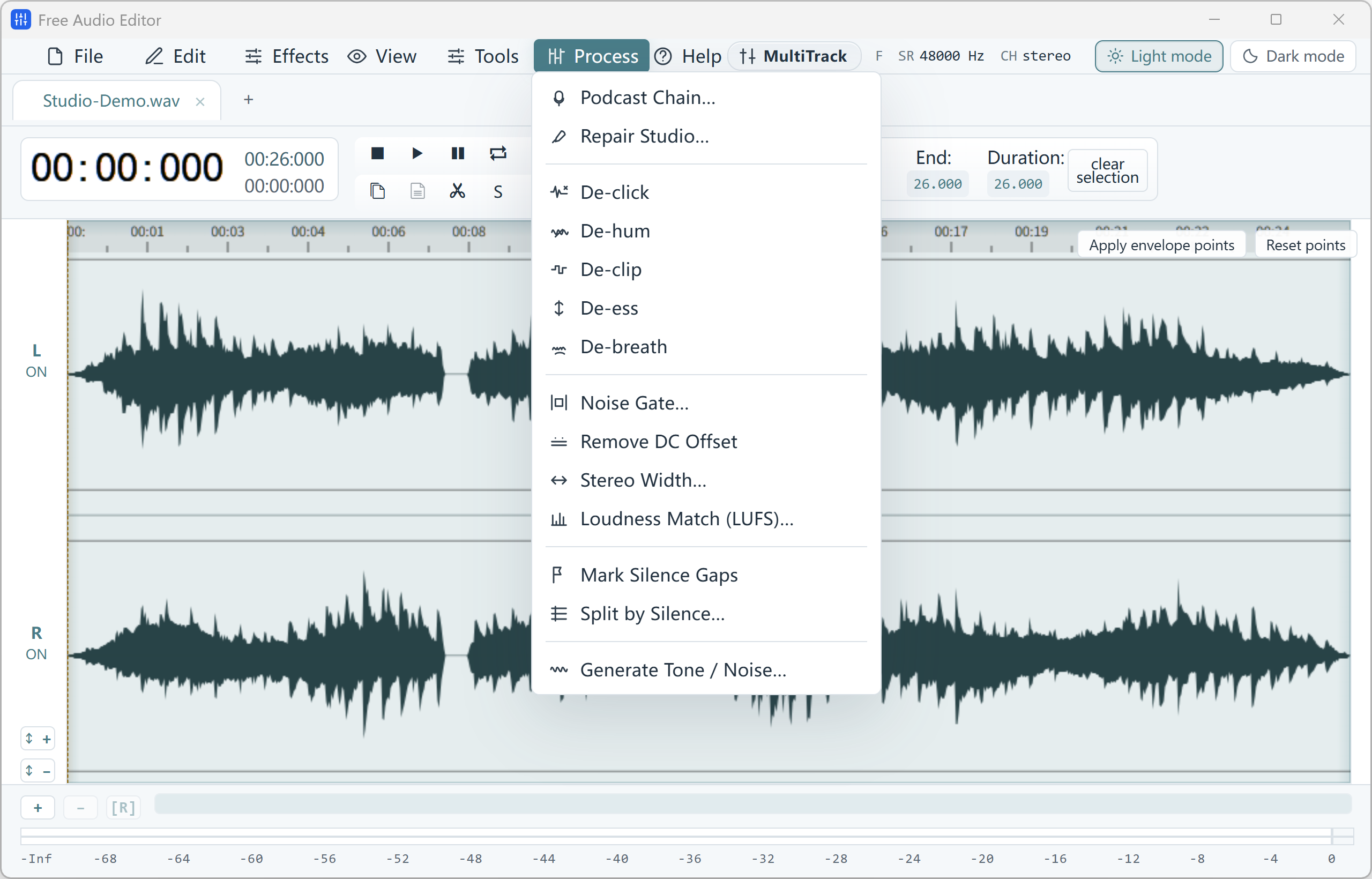
To remove silence from a voice recording, delete the long pauses and leave a short gap on purpose. Cutting every quiet moment makes speech sound rushed, and it often chops the end of a word. Free Audio Editor does this on the waveform: you see the pause, you select only the extra length, and you delete that piece.
Shorten the long pauses
- Edit a copy. If you have a WAV, use the WAV. Save the cleaned version under a new name.
- Open the copy with Home, Open. Zoom in until pauses are wide enough to drag across.
- Play across a pause and decide what “too long” means for this recording. A solo narration can lose a one-second gap. An interview often needs more air between two people.
- Drag to select the middle of the pause, not the whole quiet region. Leave a short tail after the first word and a short start before the next word. Those tails are where “s”, “t”, and the last bit of a breath live. If you select them, Delete will clip the word.
- Open Edit and choose Delete. The audio on either side joins up.
- Play from a second before the cut to a second after it. If it sounds jumped, Undo and leave more of the pause. If you hear a click, select a very short region on the join and use Effect, Fade In/Out, with Preview.
- Repeat for the next long pause. Do not hunt every breath. Breaths are part of a voice. Only the gaps that make the listener wait are worth cutting.
- Listen to the opening, a section in the middle, and the close. Then Home, Save File As.
The same selection and delete steps are the middle-cut version of trimming an MP3. Trim keeps one region. This guide deletes the gaps and keeps the speech.
What the careful guides all agree on
- A threshold that is too aggressive treats quiet speech as silence. On a waveform you can see that mistake: the selection includes the end of the word. Move the edges in.
- A tiny pad of silence on both sides of a cut sounds more natural than a perfect splice.
- Room tone and a noise bed are not silence. If music or hiss runs under the voice, deleting the “gap” also deletes that bed and the join thumps. Reduce the noise first, or cut less.
- Do this before you make the file louder. Amplifying first raises the noise in the pauses and makes the gaps harder to see.
Pauses you should keep
- A breath before a new sentence, unless it is a blast of air into the mic.
- A beat where the speaker is about to answer. Removing it makes an interview feel interrupted.
- The fade at the end of a music sting. That is not silence, and deleting it clips the sting.
Frequently asked questions
Can this be done in one click?
An automatic silence remover is fast and easy to overdo. The waveform method is slower and it lets you keep word endings. For a finished voice recording, that trade is the right one.
The edit sounds choppy. What went wrong?
The remaining gaps are too short, or the cuts include the consonants. Undo, zoom in, and leave more of each pause. Then listen to three joins in a row before you continue.
Should I remove silence from music?
Only the dead lead-in and lead-out, and only if you mean to. A quiet bar in a song is not a pause to delete. Use trim for the start and end.
Can I try one pause in the browser?
Yes, on a short clip, in the online audio editor. A full episode is a desktop edit. The tab will not hold it.