Short answer: in Free Video & Audio Converter, click YouTube / URL, paste the playlist link, turn on playlist mode and click Read formats. Up to 100 videos are added, one row each. Choose Audio only, pick MP3 and click Convert. It is free.
Use it responsibly: download only videos you own, that are licensed for download, or that you have permission to save, and follow YouTube’s Terms of Service and copyright law.
Queue Entire YouTube Playlists Without Downloading Video Frames Twice
When converting a music playlist or lecture series to MP3, browser tools force you to paste links one by one. In Free Video & Audio Converter, you can paste a public playlist link into the YouTube / URL dialog and queue up to 100 items in one step.
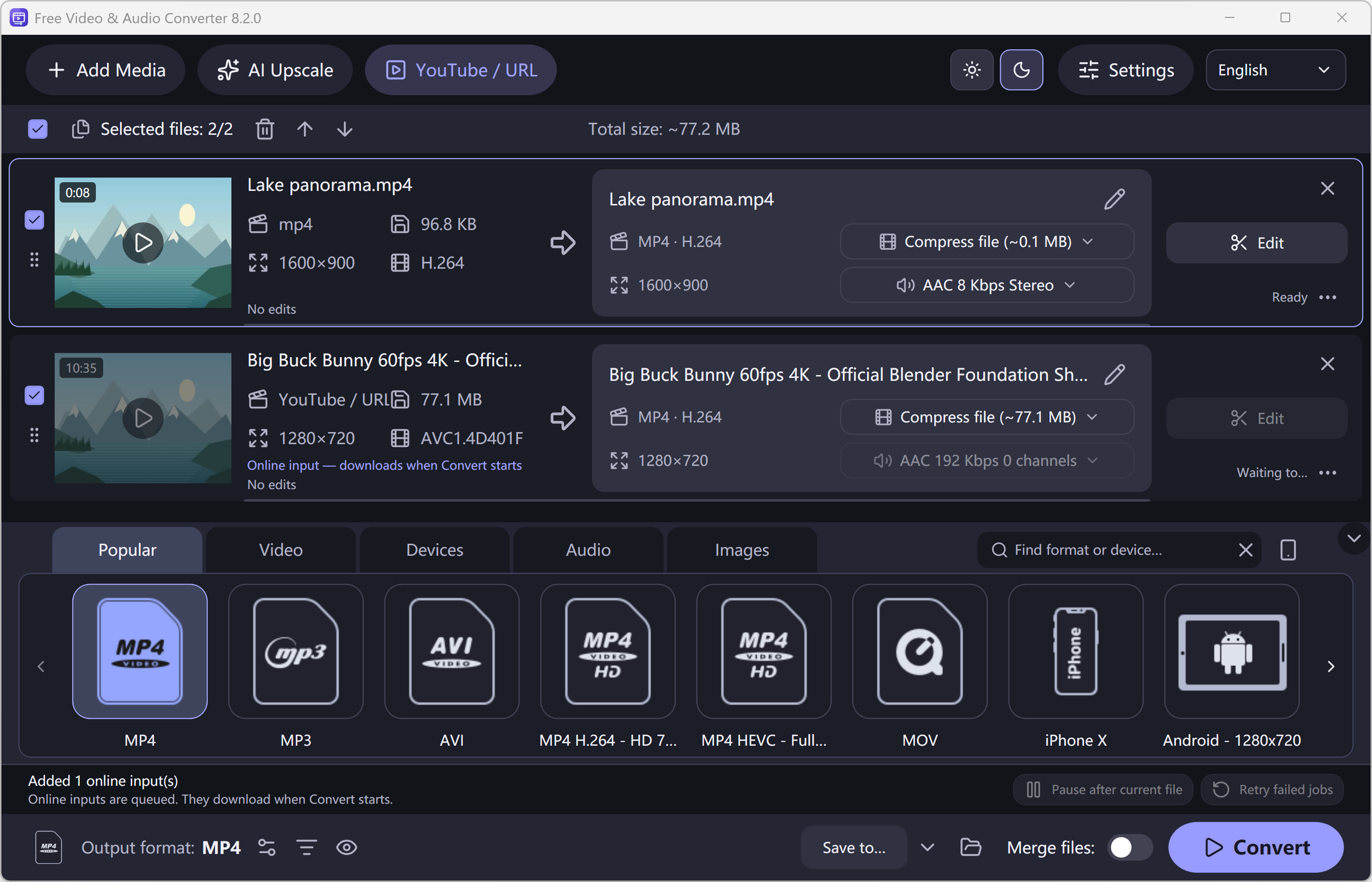
Each playlist item becomes its own row in the main conversion queue with its title, duration, and thumbnail. Because different videos in a playlist may offer different resolutions or audio streams, Free Video & Audio Converter resolves your quality rule (such as Best available or Audio only) individually for every video.
- Audio-Only Input Mode: Downloads only the best source audio stream when your goal is MP3, FLAC, WAV, or M4A.
- Per-File or Global Output Settings: Convert the whole playlist to MP3 320 kbps, or override specific items in the queue.
- Loudness Normalization: Apply -16 LUFS or -1 dB peak normalization so every track in the playlist plays at a consistent volume.
Playlist Not Loading or Some Videos Failing?
Private playlists, automatic Mixes, single-video links and outdated download modules are the usual culprits. Our YouTube playlist troubleshooting guide walks through 12 fixes, from copying the right link to updating the download module.
How to Do It in Free Video & Audio Converter (Step by Step)
-
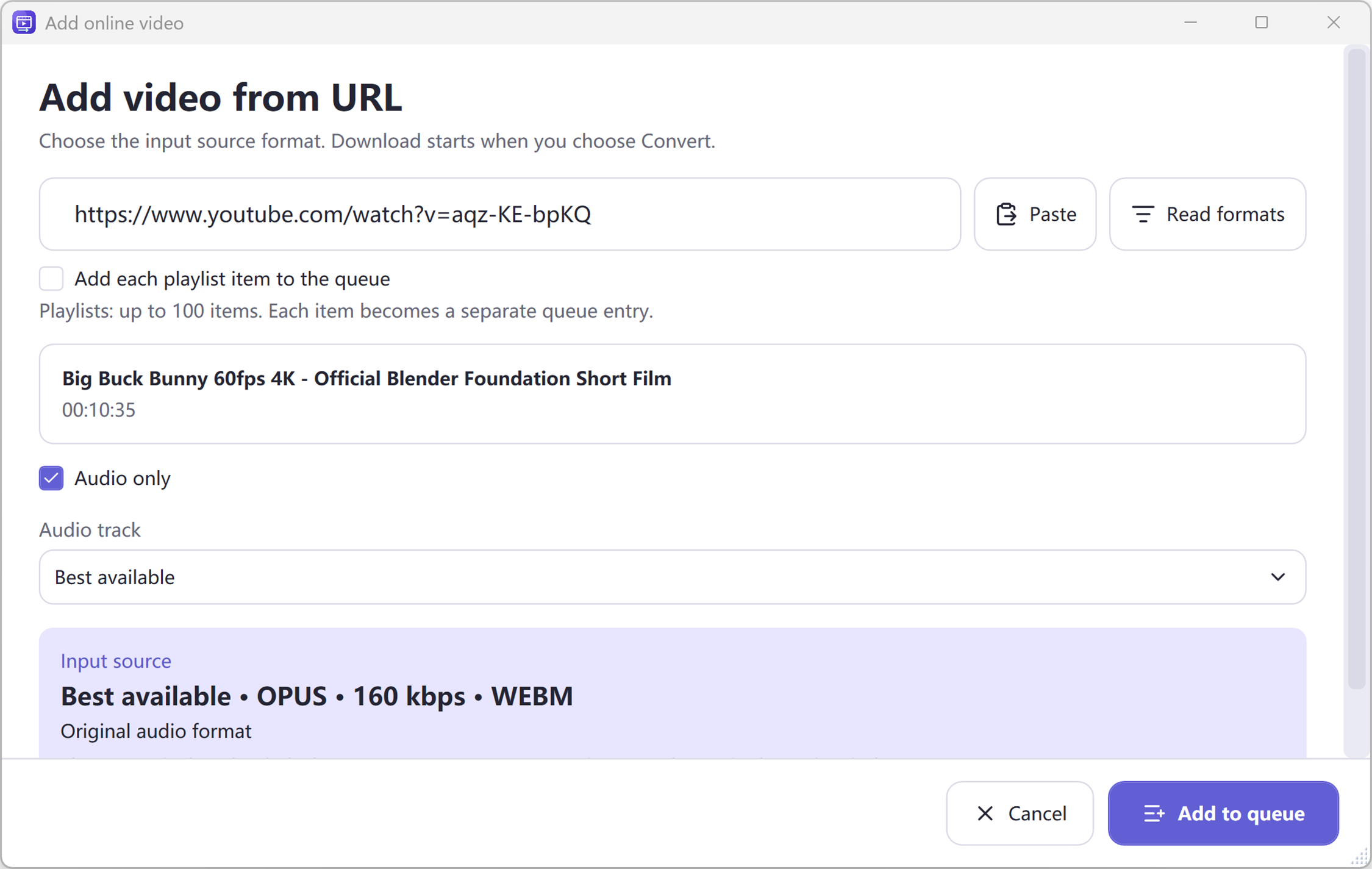
Step 1: Open YouTube / URL & Paste Playlist Link
Launch Free Video & Audio Converter, click YouTube / URL, paste your public playlist link, and click Read formats.
-
Step 2: Choose Audio Only or Best Available Quality
Select Audio only (for fast MP3/M4A conversion) or Best available video quality, and add the playlist items (up to 100) to the main queue.
-
Step 3: Select Audio > MP3 & Start Batch Conversion
Pick Audio > MP3 in the bottom format bar and click Convert. Your converted tracks are saved directly to your chosen PC folder.
Button names in the guide below may differ slightly from the current version. In Free Video & Audio Converter, drag your files into the window, choose a format at the bottom and click Convert.
More Details & Tips
To convert a YouTube playlist to MP3 on Windows 11 or Windows 10, add the playlist URL to Easy YouTube to MP3 Converter, let the program read the available items, select the videos you are allowed to save, choose MP3 and an output folder, and then start the batch. This page explains each step, sensible MP3 settings and the most common reasons a playlist does not load.
Use downloads responsibly. Save only videos and audio you created, public-domain or Creative Commons material whose license permits downloading, or content you have permission to use. Respect YouTube’s terms, copyright law and creator rights. The program cannot make private, removed, age-restricted or access-controlled media available, and this guide does not describe bypassing those controls.How to download a YouTube playlist as MP3
- Install the Windows app from this official website. Download the installer using the button above, read each setup screen and open Easy YouTube to MP3 Converter. The current desktop application supports Windows 11 and Windows 10.
- Open the playlist in your browser. Confirm that the playlist is public or otherwise available to you and that you have permission to save the selected items.
- Copy the complete playlist URL. Use the address from the browser’s address bar. A normal playlist address contains a
list=value. Copying a single video’s shortened address may load only that video instead of the playlist. - Paste or add the URL in the converter. Choose the command for adding a URL, then wait while the app reads the playlist. Interface wording can vary slightly between builds.
- Review the queue before downloading. Deselect private, removed, duplicate or unwanted entries. For a long playlist, start with two or three permitted items so you can confirm the format and output folder before running the full batch.
- Select MP3 as the output format. Choose a quality preset appropriate for the source. Increasing the bitrate cannot recreate audio detail that is not present in the original stream.
- Choose a clear output folder. Use a new folder named for the playlist so the results do not become mixed with unrelated music, recordings or previous downloads.
- Start the batch and verify the files. Allow the first item to finish, play it, and check the beginning, middle and end. Then continue with the remaining permitted entries.
Recommended MP3 settings
| Use case | Suggested starting point | Why |
|---|---|---|
| General music listening | 192 kbps MP3 | A practical balance between compatibility, quality and storage. |
| Higher-quality source music | 256 kbps MP3 | Uses more space and may better preserve complex music, but it cannot improve a low-quality source. |
| Editing or archiving | Keep the permitted source or use a lossless workflow | Repeated MP3 encoding introduces additional loss. Keep an authorized original whenever possible. |
If the application offers sample-rate and channel controls, start with values close to the source. Converting a mono speech recording to stereo or raising the sample rate does not add real detail.
Why a playlist may not load
The URL opens one video instead of the playlist
Return to the playlist page and copy the full browser address. Confirm it contains the playlist identifier. If a shared URL omits that identifier, the converter can see only the individual video.
Some playlist items are missing
The converter cannot read any items
Video platforms change their pages and delivery methods over time. First verify that the playlist works in a normal browser, restart the application and test a short public playlist that you control. If the browser works but the app does not, the current build may need an update.
The batch stops or downloads slowly
Run a smaller group, keep enough free disk space, avoid changing the output folder during a job and check whether security software or a firewall is blocking the application. Download speed also depends on the source server and your connection.
The MP3 file has poor quality
The output cannot exceed the source quality. Try a moderate 192 kbps preset, avoid converting the same MP3 repeatedly and compare the result with the permitted source in your browser. A larger bitrate is not automatically better.
YouTube playlist to MP3 FAQ
Can I convert an entire YouTube playlist to MP3 at once?
The app can place available playlist items into a batch queue. Review the list and process only content you are allowed to download. Private, removed or restricted items may be unavailable.
Does the converter work on Windows 11?
Yes. The current Windows application supports Windows 11 and Windows 10. Use the official HTTPS download on this website and read the installer prompts before continuing.
What is the best MP3 bitrate for a playlist?
Start with 128 kbps for speech and 192 kbps for general music listening. Use a higher setting only when the authorized source quality justifies it. Raising the bitrate cannot restore information already lost upstream.
Why are some videos skipped?
Common reasons include deletion, privacy settings, geographic limits, age restrictions, live-stream status or a platform change. The safe response is to leave restricted items alone and continue only with normally accessible content you have permission to save.
Can I download a private playlist?
Do not use the software to defeat privacy or access controls. If it is your own private playlist, use the official account and export or download options provided by the platform.
Related guides
- How to download permitted videos in a batch
- How to convert an authorized YouTube video to MP3
- Easy YouTube to MP3 Converter product page
- Edit and enhance an audio file on Windows
Last reviewed: August 20, 2026. Availability of individual sources and playlist items can change independently of the desktop application.
Frequently Asked Questions
Is YouTube playlist to MP3 conversion free in Free Video & Audio Converter?
Yes! All supported online source queueing and audio/video output formats in Free Video & Audio Converter are free.
How many songs can I convert from one playlist?
Up to 100 videos per playlist. Each video becomes its own MP3 file.
What MP3 quality can I choose?
MP3 up to 320 kbps. You can also choose M4A/AAC, FLAC, WAV or OGG.
Does it work on my phone?
No. Free Video & Audio Converter is a Windows 11/10 program. Download it on a Windows PC.
Which playlists are not supported?
Private playlists and automatic YouTube mixes cannot be read. Deleted, private or region-blocked videos inside a playlist are skipped.