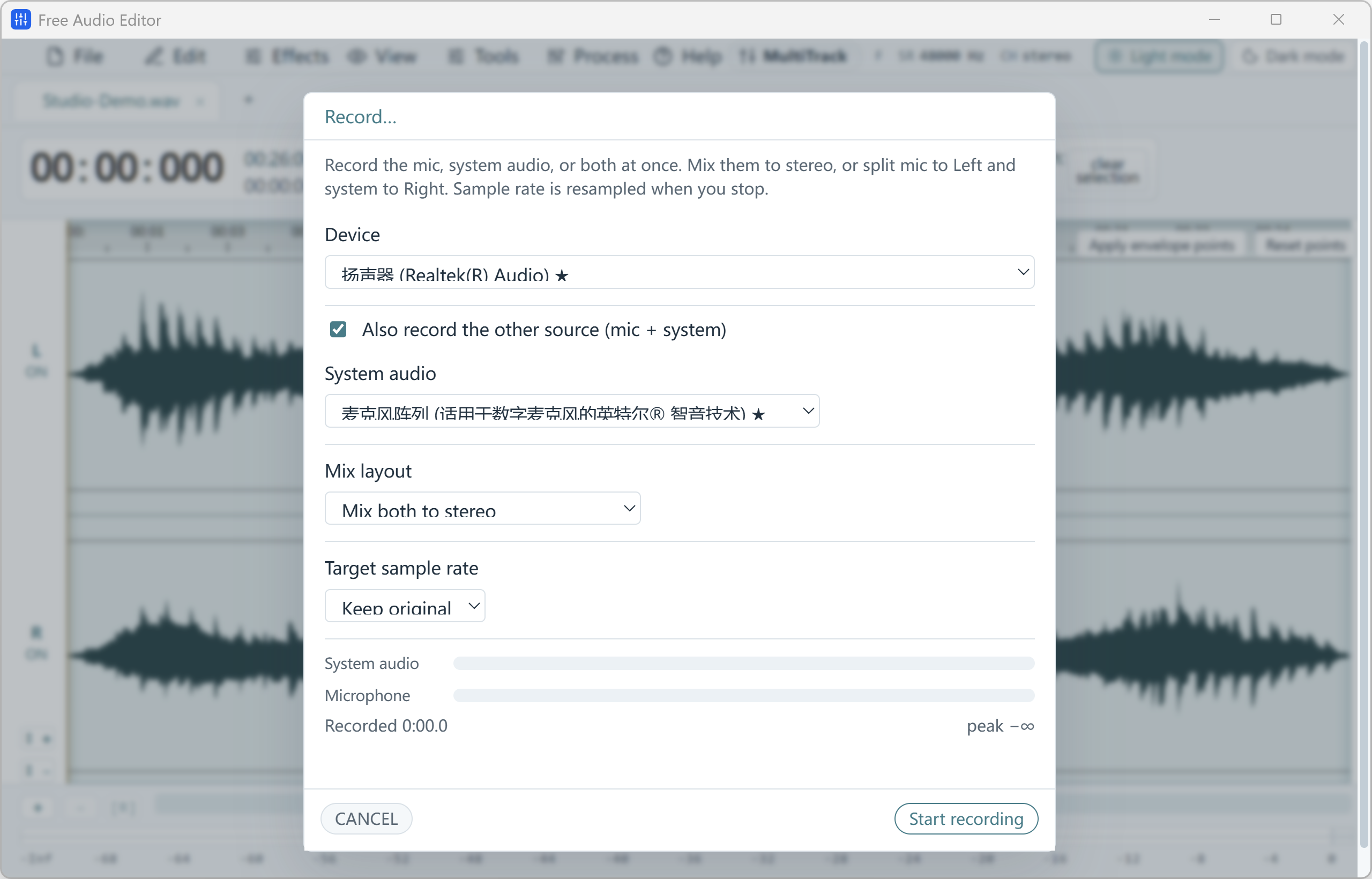
Overview: How to Record System Audio on Windows 11 (WASAPI Loopback & Mic)
Capture desktop playback and microphone input together or split into Left/Right stereo channels in Free Audio Editor.
With Free Audio Editor, you get a complete stereo waveform and spectrogram editor, native microphone + WASAPI system loopback recorder, 5-stage Repair Studio, Podcast Chain, and Multitrack Mixer on Windows 11 and Windows 10. Audio editing, project saving (.wsmith), and WAV export are free without registration; registration unlocks MP3, FLAC, AAC, and 58 export definitions.
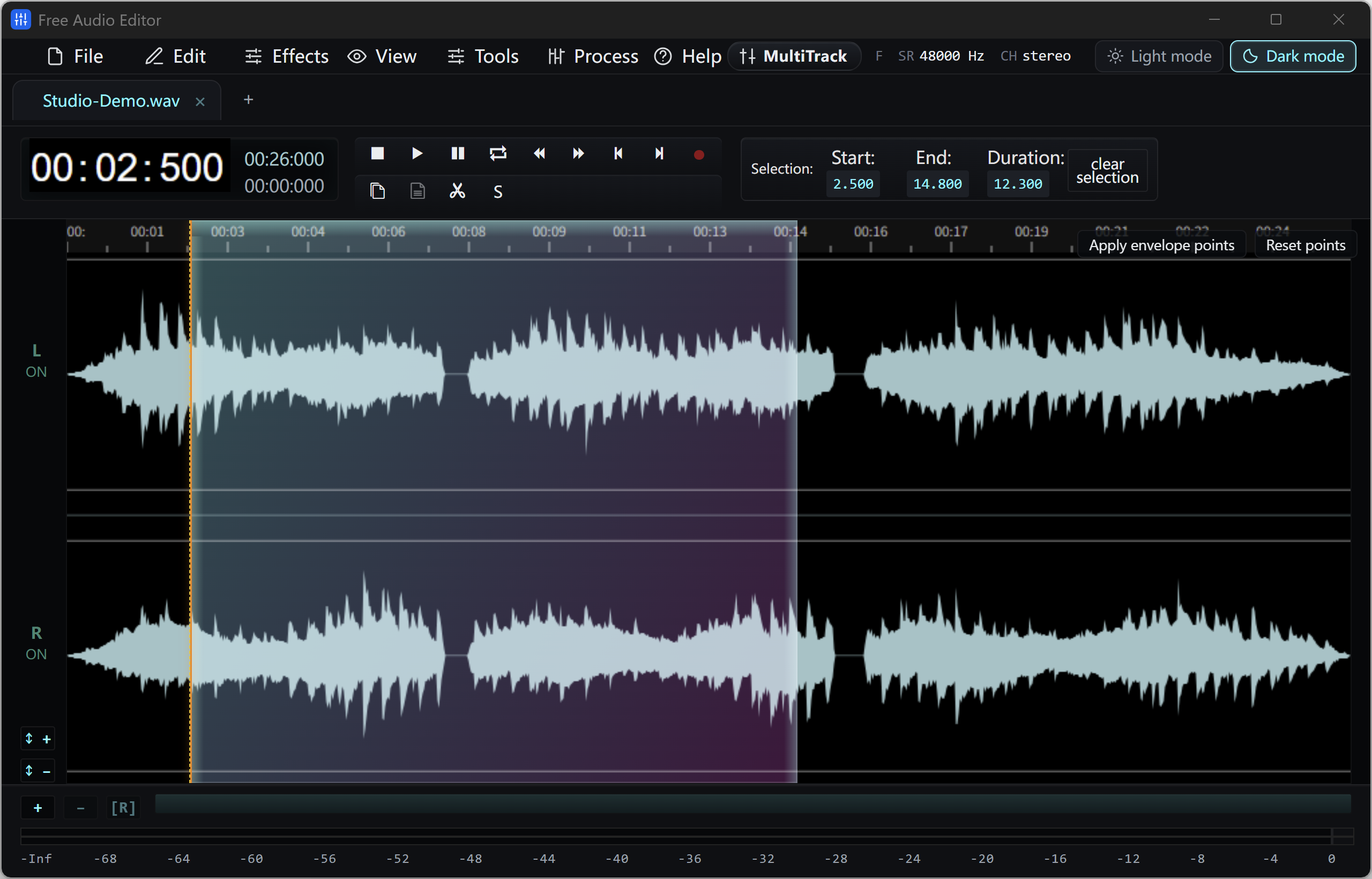
How to Do It in Free Audio Editor (Step by Step)
-
Step 1: Download & Launch the Windows Installer
Install and open Free Audio Editor on Windows 11 or Windows 10.
-
Step 2: Load Your Audio or Video File
Drag and drop your media files directly into the workspace.
-
Step 3: Process & Export Locally
Apply your edits or cleanup with live preview, then save to WAV (free) or registered export formats.
Menu names in the guide below may differ slightly from the current version. In Free Audio Editor, most commands are under Edit, Effects, Process and Tools — or press Ctrl+K to search for any command.
More Details & Tips
To record system audio on Windows 11, record the sound the PC is already playing, not the microphone. Voice Recorder and Xbox Game Bar capture the mic. They do not capture a song, a video, or a call playing through the speakers. Free Audio Editor records from the sound card: you choose the input, confirm the meter moves while that audio plays, then record.
Record what you hear
- Play a few seconds of the audio you want, and turn other noises down. Notifications, extra browser tabs, and the editor’s own playback will be recorded too if they go through the same output.
- Open Free Audio Editor. Choose Home, then New Record. Pick the sample rate and channels, then OK. For speech, 44.1 kHz stereo is a normal starting point. For a music capture you may keep, use the same rate the source is already using if you know it.
- In the recorder, choose the sound card, then the recording source. The source that means “whatever is playing” is often named Stereo Mix, Wave Out, What U Hear, or a similar loopback name. It is not Microphone.
- Start the audio again and watch the meter. Drag the recording-volume slider until the meter moves and the peaks stay short of the top. A meter that never leaves the bottom means this source is not hearing the playback.
- Click the record button. Let the material play. Click Pause when it ends. Click Keep to place the recording on the waveform in the editor.
- Listen back. Trim the startup silence if you need to, using the same selection and crop steps as in the MP3 trim guide.
- Choose Home, Save File As. WAV keeps a master you can edit again. MP3 is the smaller copy for sharing. Set the quality in that save window.
More of the recorder is covered on Capture Any Sound and in the older recording walkthrough. This page is specifically about system audio on Windows 11, where Stereo Mix is often hidden.
If Stereo Mix is missing
- Right-click the speaker icon on the taskbar and open Sound settings.
- Open the full sound control panel (More sound settings, or the classic Sound window) and select the Recording tab.
- Right-click the empty space in the device list and enable Show Disabled Devices and Show Disconnected Devices.
- If Stereo Mix, or a similarly named device, appears, right-click it and choose Enable.
- Return to the recorder, choose that source, and test the meter again while audio plays.
Some PCs never show Stereo Mix. USB headsets, HDMI outputs, and many laptop drivers do not provide it. In that case the meter test still decides the question: if no listed source moves while the speakers play, that driver is not offering a loopback input to the recorder. Record from the microphone only when you mean to record the room. Do not expect Voice Recorder to fill this gap.
Record a microphone instead
Choose the microphone as the source, not Stereo Mix. Move the mic closer to the person talking, and record two seconds of quiet room tone before the first word. That room tone is what you use later if you reduce background noise. Keep the meter out of the red. A recording that already touches the top of the meter cannot be made cleanly louder afterward.
Timer and silence
The recorder can start from a timer, and it can skip stretches where the input is silent. Use the timer when you need an unattended start. Leave silence-skipping off the first time you capture system audio, so a quiet intro is not thrown away before you have heard the take.
Frequently asked questions
Why is my recording silent?
The usual cause is the wrong source. Microphone records the room. Stereo Mix, or whichever input moves the meter while audio plays, records the PC. Play the audio before you press record, and do not stop playback until the take is finished.
Does Xbox Game Bar record system audio?
Game Bar records a game or a window together with the microphone. It is not an audio editor, and it is not a dependable way to save an arbitrary stream as WAV or MP3. Record in Free Audio Editor, then edit the waveform.
Can I record a video’s sound and then cut it?
Yes. Keep the recording, then trim, fade, or clean it on the waveform. Save File As so the raw take remains.
What should I save?
Save WAV if you will edit again. Save MP3 when you need a smaller file to send or play. Quality presets for that export are covered under flexible quality presets.