Overview: How to Convert WAV to MP3 on Windows 11 (Batch & Free)
Batch convert WAV, FLAC, M4A, WMA, and OGG to MP3 up to 320 kbps in Free Video & Audio Converter.
With Free Video & Audio Converter, all 428 video, audio, and device conversion presets—plus trimming, merging, audio normalization, subtitle studio, local AI upscaling, and YouTube URL queueing—are available free on Windows 11 and Windows 10 (64-bit).
How to Do It in Free Video & Audio Converter (Step by Step)
-
Step 1: Download & Launch the Windows Installer
Install and open Free Video & Audio Converter on Windows 11 or Windows 10.
-
Step 2: Load Your Audio or Video File
Drag and drop your media files directly into the workspace.
-
Step 3: Process & Export Locally
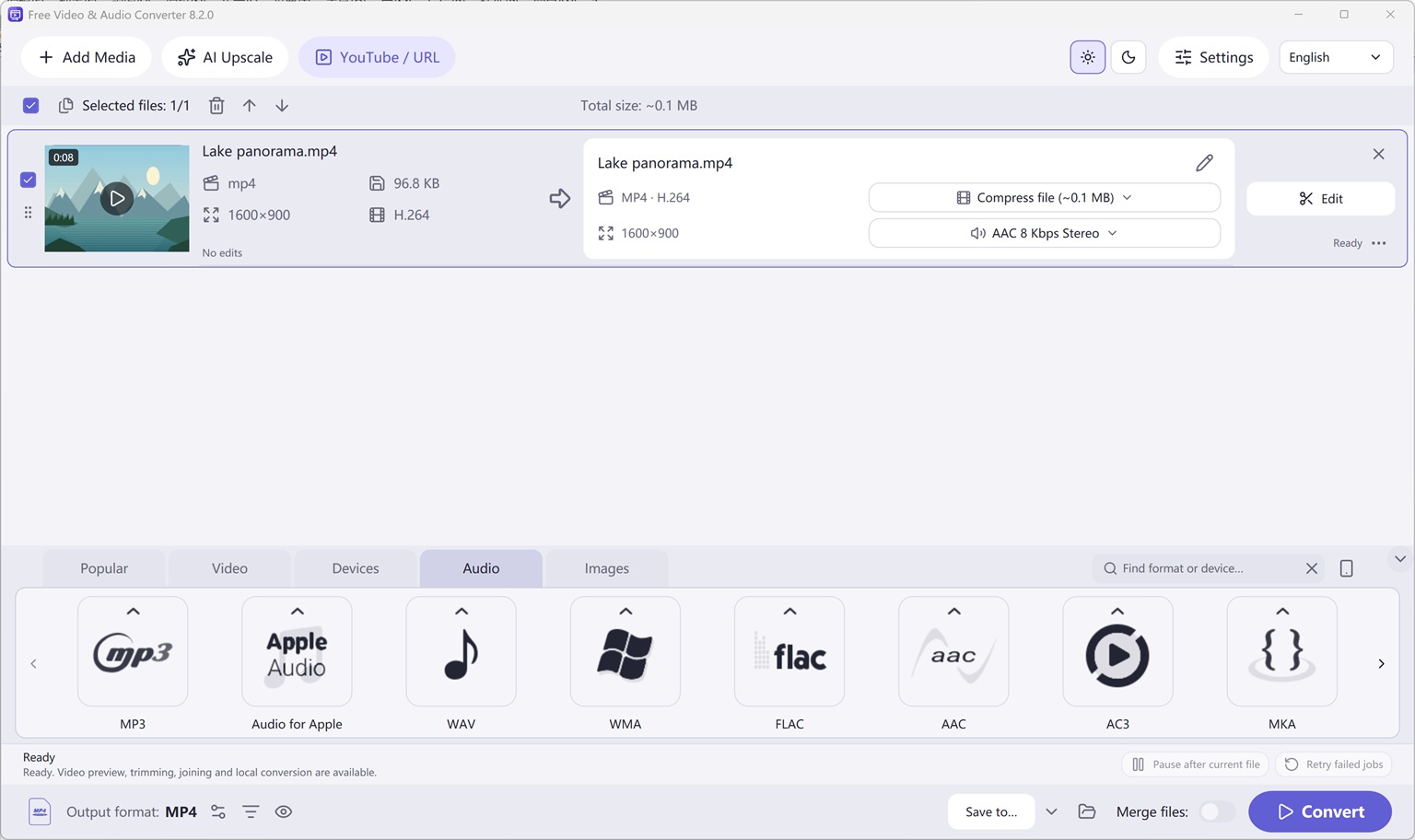
Select your target preset and click Convert for fast local output.
Button names in the guide below may differ slightly from the current version. In Free Video & Audio Converter, drag your files into the window, choose a format at the bottom and click Convert.
More Details & Tips
One short file: use the online audio converter. It converts one or two files in the browser, about 20 MB and 10 minutes each. A folder of WAV files is still Free Audio Converter for Windows.
Windows 11 can play a WAV file. It cannot export that WAV as an MP3 on its own. Windows Media Player plays both formats and does not convert a WAV in your folder into an MP3. Convert a copy, keep the WAV as the master, and pick a bitrate for the way the MP3 will be used.
Convert one WAV to MP3
- Leave the original WAV where it is. You will create a second file, not replace the first.
- Open Free Audio Editor and choose Home, Open. Select the WAV.
- Play the start, a loud passage, and the end. Trim or fade now if the file needs it. Do that before the MP3 export so you are not compressing twice. The trim guide and the fade guide cover those edits.
- Choose Home, Save File As. Select the destination folder. Choose MP3 as the format.
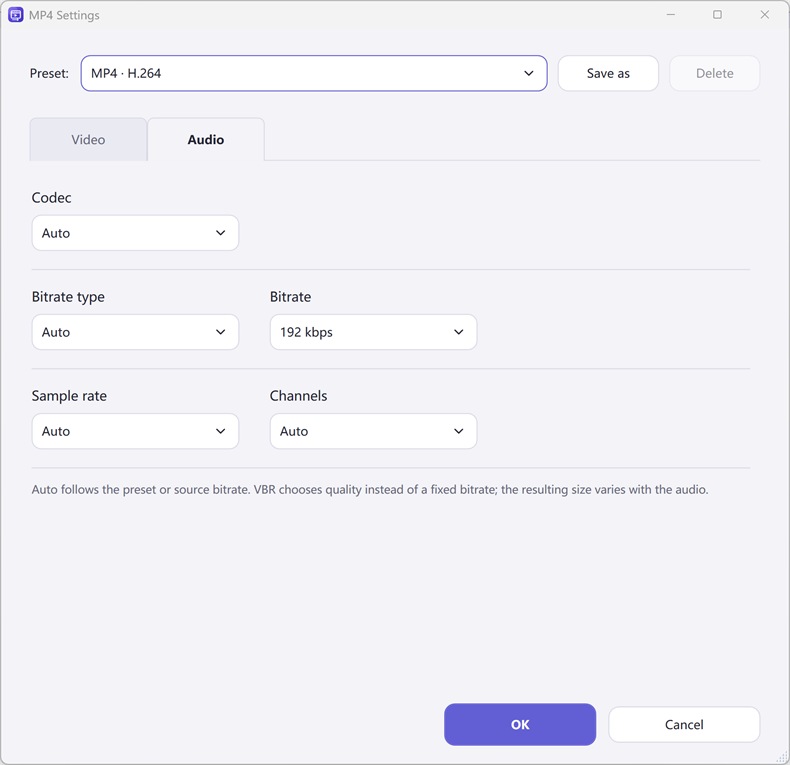
- Set the quality. Use the table below. The presets in flexible quality presets are there for this choice.
- Save. Open the MP3 in any player and check the beginning, a loud part, and the end. Confirm the WAV is still in the original folder.
Which bitrate to use
- 128 kbps for speech: a voice memo, a lecture, a podcast draft you need to email.
- 192 kbps for most music and for a finished voice recording you will publish.
- 320 kbps when the MP3 is the copy people will keep and you still want the WAV stored separately.
Mono is enough for a single voice and makes a smaller file. Stereo matters when the recording has a real left-right image. A lower bitrate does not remove noise. Clean the recording first if hiss is the problem: remove background noise.
Convert a folder of WAV files
Opening every file by hand is the slow path. Free Audio Editor can run the same conversion across many files with batch processing: add the files, choose the output format and quality, and run the batch. For a straight format change with no editing, Free Audio Converter is the tool on this site built for that queue. Either way, write the MP3s into a different folder so a batch cannot overwrite the WAV masters.
What not to do
- Do not delete the WAV after the first MP3 until you have listened to the MP3. MP3 is lossy. You cannot turn it back into the original WAV.
- Do not burn the WAV to a CD and rip it just to get an MP3. That is a long way around, and it is how older Media Player instructions work. Save File As is the direct export.
- Do not upload a private recording to a random website converter. The desktop export stays on the PC.
Frequently asked questions
Does Windows 11 have a built-in WAV to MP3 converter?
No. Media Player plays WAV. It does not save that file as MP3. Use Free Audio Editor or Free Audio Converter.
Will the MP3 sound the same as the WAV?
Close, not identical. At 192 or 320 kbps most speech and music survive the conversion well. At very low bitrates you will hear watery cymbals, lisping speech, or a dull recording. Keep the WAV if this file is an archive.
Can I convert M4A the same way?
Yes. Open the M4A and use Save File As, MP3. Voice Recorder on Windows often saves M4A rather than WAV. The export step is the same.
The file is only a short clip. Do I need the installer?
A short clip can be exported from the online audio editor. A folder of masters should be converted on the PC.