Desktop MP4 to MP3 Converter vs. Online Converters
Browser converters are fine for one small clip. For anything bigger, a desktop converter saves a lot of time:
| Online converter | Free Video & Audio Converter | |
|---|---|---|
| Upload needed | Yes — every file | No — files stay on your PC |
| Large / long videos | Often size-limited | Full-length movies |
| Many files at once | Usually one by one | Whole folders in one batch |
| Cut before converting | Rarely | Trim the exact part you need |
| YouTube links & playlists | Varies | Up to 100 playlist videos |
| Price | Free with ads or limits | Free |
Which MP3 Quality Should You Choose?
MP3 is a compressed format, so the bitrate decides the balance between sound quality and file size:
- 320 kbps — best MP3 quality for music and concerts.
- 192–256 kbps — great everyday quality with smaller files.
- 96–128 kbps — fine for speech, lectures and audiobooks.
- Need an exact, lossless copy of the soundtrack? Choose FLAC or WAV instead of MP3.
Not Just MP4: Convert Any Video to MP3
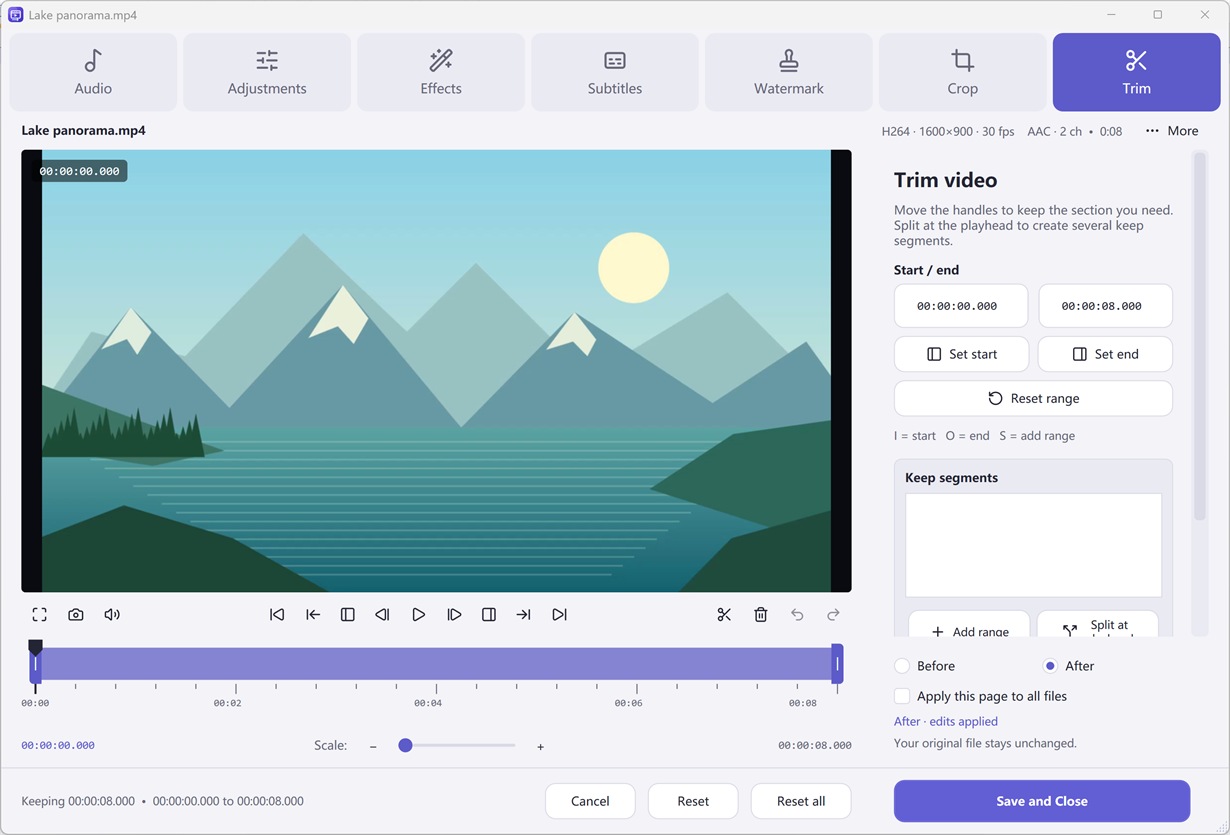
The same three clicks work for MKV, MOV, AVI, WMV, WebM, FLV, MPG and 3GP videos, and you can save M4A/AAC, FLAC, WAV, OGG, Opus or WMA instead of MP3. Want only one song from a long video? Open the Trim editor, mark the start and end, and convert just that part. See also: AVI to MP3, WAV to MP3 and WMA to MP3.
How to Do It in Free Video & Audio Converter (Step by Step)
-
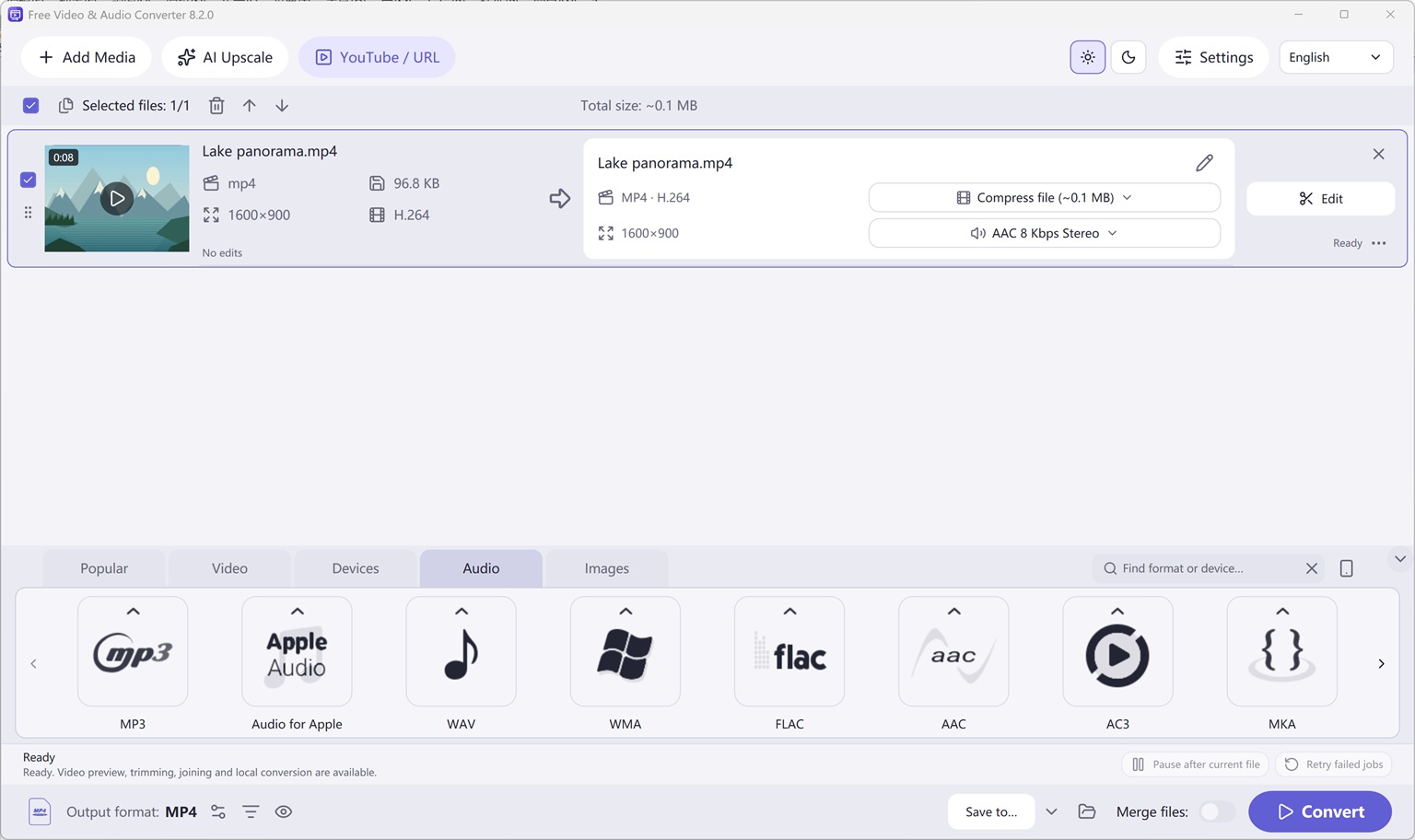
Step 1: Add your MP4 files
Open Free Video & Audio Converter and drag MP4 files — or a whole folder — into the window.
-
Step 2: Choose Audio > MP3
Click the Audio category at the bottom, pick MP3, and select a quality such as 320 kbps.
-
Step 3: Click Convert
Choose an output folder and click Convert. Every MP4 in the list becomes an MP3.
Button names in the guide below may differ slightly from the current version. In Free Video & Audio Converter, drag your files into the window, choose a format at the bottom and click Convert.
More Details & Tips
In the browser: a short file can be finished online. Open the tool from the link in this site’s front page, or read the new how-to posted here.
How to convert video to audio online
Introduction
How many times have you watched a video with a fantastic piece of music on it? Wouldn’t it be great if you could make it an MP3 file to play on your computer, or MP3 player? Free Video to Audio Converter is one of great selection of audio extraction tools that you can use to make your own MP3s from video clips.
Step 1. Input Video Files
Click “Add” and 3 ways can be applied to add video file: “Add Files” is for one or more video files; “Add Folder” is for the folder containing video files; “Add Folder Tree” is for the folder along with its subfolders. To delete them from the list by “Remove”/”Clear”.
Tips: All the files will be listed in order of input by default. If you need to arrange the files in order, just use the “Up” & “Down” buttons to move it up and down in the list.
Step 2. Choose Quality Presets & Codec
In the menu of “Convert to”, select one conversion type from “Presets” and “Codec”. If “Presets” has been chosen, you will see a whole list of quality presets in the dropdown menu of “Presets”. Choose the one that best suits your needs. To adjust codec settings, click “Codec Options”. To specify effects and filter settings, click “Filters”. After that, click “Browse” to choose an output folder for the converted video files or check “Same as source” to save them in the source folder.
Step 3. Start Extraction
Now, start audio extraction by clicking “Start”. After conversion, you can click “Open” to open output folder to find the converted files.
Step 4. More Features Available
There are more advanced and convenient features that may make your work easier:
To trim audio in audio trimmer, click “Trim”;
If there are needs to make all your audio files a well tagged collection for easier playback, click “Tags” and you can edit audio tag including artist, album, performer, genre, date, etc.;
For more detailed settings of various features, click “Edit – General Settings”:
General – check updates, register shell extension, choose temp folder and play reminder sound, check logs, etc.;
Encoding – set max parallel conversion processes allowed, enable trimming, keep logs, add encoder suffix, choose overwrite settings, etc.;
Artwork & Tags – extract artwork from audio or embed artwork to audio, resize artwork, copy tag, write tag, etc.;
ReplayGain – choose ReplayGain settings, prevent clipping, copy to lossless output from lossless source, etc.;
File Adding – use file length filter and format filter to filter out certain file types, use MediaInfo to read tags, etc.;
Interface – make the app always on top, show extra columns in file list and show text in toolbar buttons.
Frequently Asked Questions
Is this MP4 to MP3 converter really free?
Yes. Every conversion and export feature in Free Video & Audio Converter is free, with no watermark and no trial period.
Can I convert many MP4 files to MP3 at once?
Yes. Add as many files or folders as you like and convert the whole list in one batch.
Does converting MP4 to MP3 reduce sound quality?
MP3 is a lossy format. Choose 256–320 kbps for music to keep the difference inaudible for most listeners, or pick FLAC/WAV for a lossless copy.
Which Windows versions are supported?
Windows 11 and Windows 10 (64-bit, version 2004 or later).
Can I convert MP4 to MP3 online instead?
Yes — for one short clip, try our online video to audio converter. For large files or batches, the desktop app is faster.