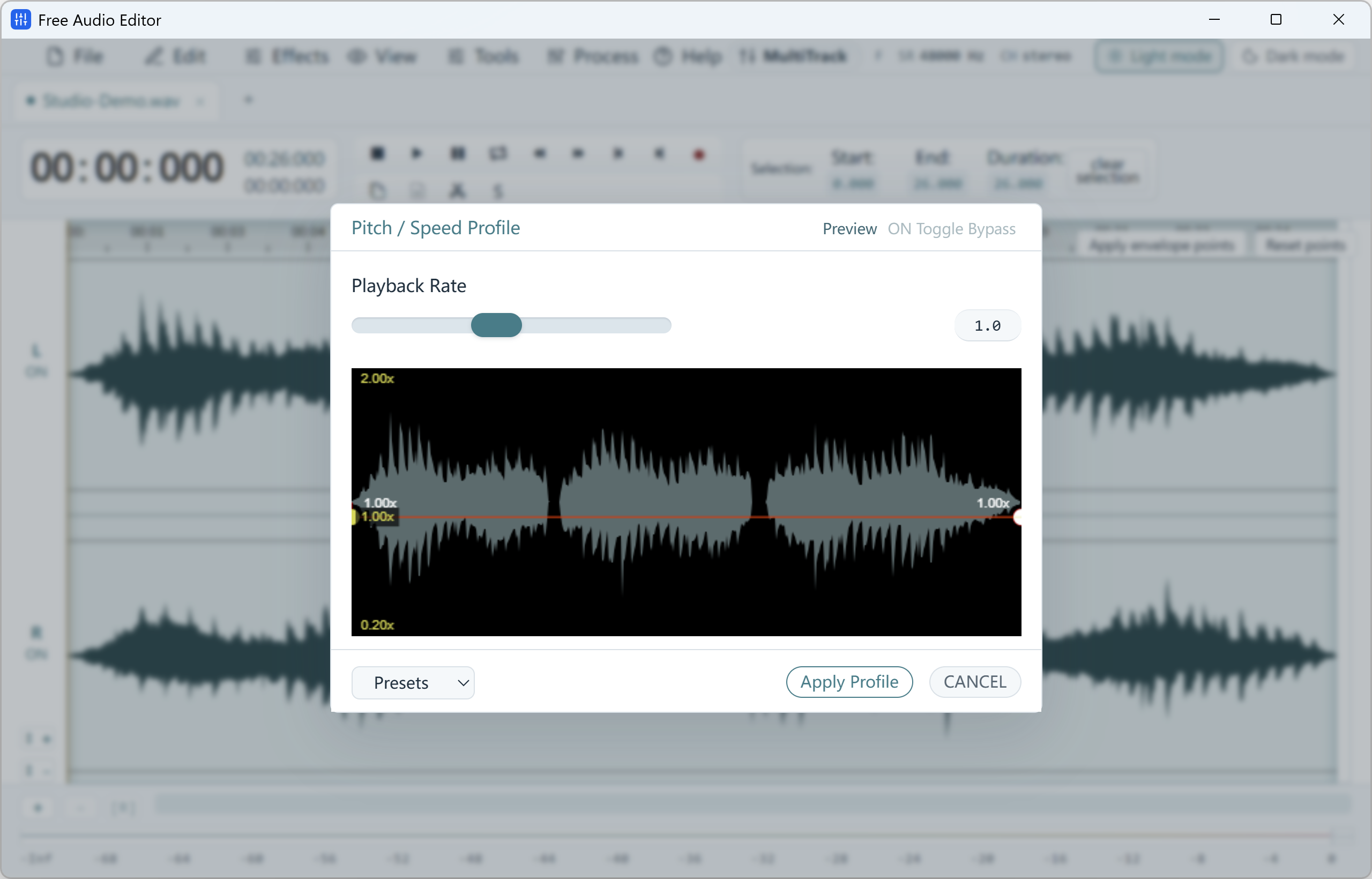
Overview: How to Adjust Audio Speed & Pitch Profile on Windows 11/10
Use Speed / Playback Rate controls and draw custom Pitch/Speed envelopes over the waveform in Free Audio Editor.
With Free Audio Editor, you get a complete stereo waveform and spectrogram editor, native microphone + WASAPI system loopback recorder, 5-stage Repair Studio, Podcast Chain, and Multitrack Mixer on Windows 11 and Windows 10. Audio editing, project saving (.wsmith), and WAV export are free without registration; registration unlocks MP3, FLAC, AAC, and 58 export definitions.
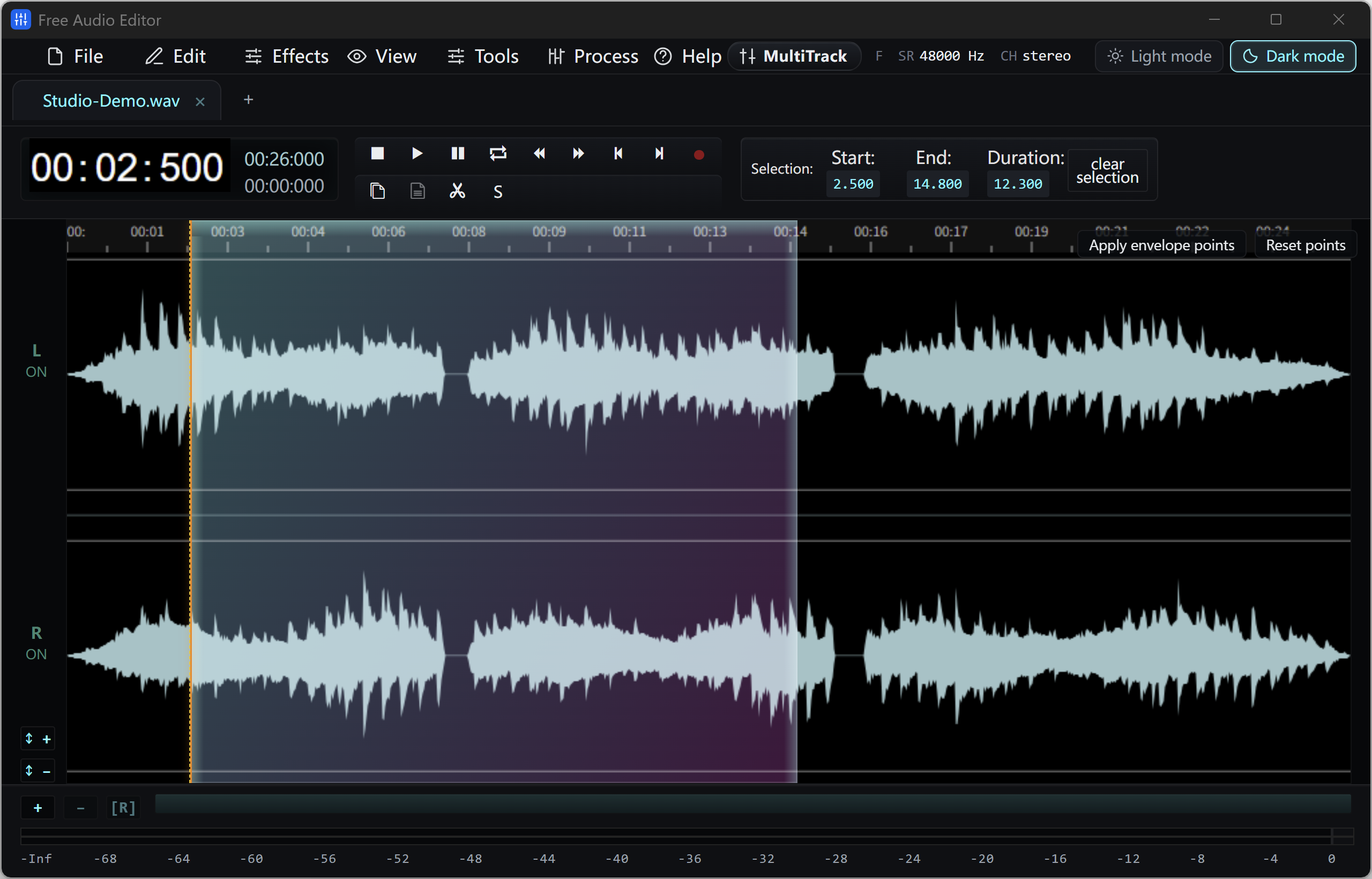
How to Do It in Free Audio Editor (Step by Step)
-
Step 1: Download & Launch the Windows Installer
Install and open Free Audio Editor on Windows 11 or Windows 10.
-
Step 2: Load Your Audio or Video File
Drag and drop your media files directly into the workspace.
-
Step 3: Process & Export Locally
Apply your edits or cleanup with live preview, then save to WAV (free) or registered export formats.
Menu names in the guide below may differ slightly from the current version. In Free Audio Editor, most commands are under Edit, Effects, Process and Tools — or press Ctrl+K to search for any command.
More Details & Tips
To change the speed of an audio file without the chipmunk effect, change the tempo and leave the pitch alone. A control that changes speed and pitch together will raise the voice when you speed the file up and drop it when you slow the file down. Free Audio Editor keeps those as separate tools under Time and Pitch.
Speed up or slow down, same pitch
- Copy the file. Time stretching is hard to undo once you have exported over the only copy.
- Open the copy with Home, Open. Edit the WAV if you have one.
- Select the region you want to change. Press Ctrl+A for the whole file. Leave music beds and sound effects unselected if only the voice should speed up.
- Open the Effect tab and choose the time-stretching control under Time and Pitch. Do not choose the pitch-shifting control if the voice should stay in the same key.
- Use a modest change. For a podcast, 10 to 25 percent faster is usually intelligible. Half speed is for learning a part, not for a publishable voice. The fields are linked in spirit even when you type only one of them: percent, or the length you want the region to become.
- Preview. Listen to consonants and to any music in the selection. A watery, chorused sound means the stretch is too large. Reduce it.
- Click OK only after the preview sounds acceptable. Play the join between processed and unprocessed audio if you changed only part of the file.
- Choose Home, Save File As. The length of the file has changed, so check that a video edit using the old duration is updated too.
When you do want the pitch to change
Use the pitch-shifting control, not time stretch, when the length should stay the same and the note should move. That is a different effect. Using it to “fix” a file you sped up will not reliably put the voice back, because the two processes are not a perfect pair. Go back to the copy and stretch by a smaller amount instead.
What the better guides point out
- Playback speed in a media player is not an export. VLC can play a file faster without changing pitch. The file you hand to someone else is still the original length until you export a new one.
- Very large stretches sound artificial on music, and they smear speech. Make two smaller changes and preview, rather than one extreme change.
- Stretching a noisy file stretches the noise as well. Clean the noise first if the voice is already hard to understand.
Match a target length
If a slot is 30 seconds and the clip is 36, you do not need a guessed percentage. Select the clip, open time stretching, and set the target length near 30 seconds. Preview. If the voice becomes unclear, cut a sentence with the trim instead of stretching harder. Cutting is cleaner than a huge tempo change.
Frequently asked questions
Why does my voice sound like a chipmunk?
The effect changed pitch along with speed. Undo, reopen the untouched copy if you already saved, and use time stretching rather than the pitch control.
Can I slow a song to learn it?
Yes. Select the passage, time-stretch it slower, and preview. Large slowdowns are for practice. Export a practice copy and keep the original performance.
Does this change the file format?
Only when you save. Save File As lets you keep WAV or write MP3. The stretch itself is an edit on the audio in the editor.
Can the online editor do this?
The browser preview is for cutting a short clip. A tempo change on a full track belongs in the Windows app, where you can preview and keep the original file.