What Is a Sound Editor (and What Should a Free One Do)?
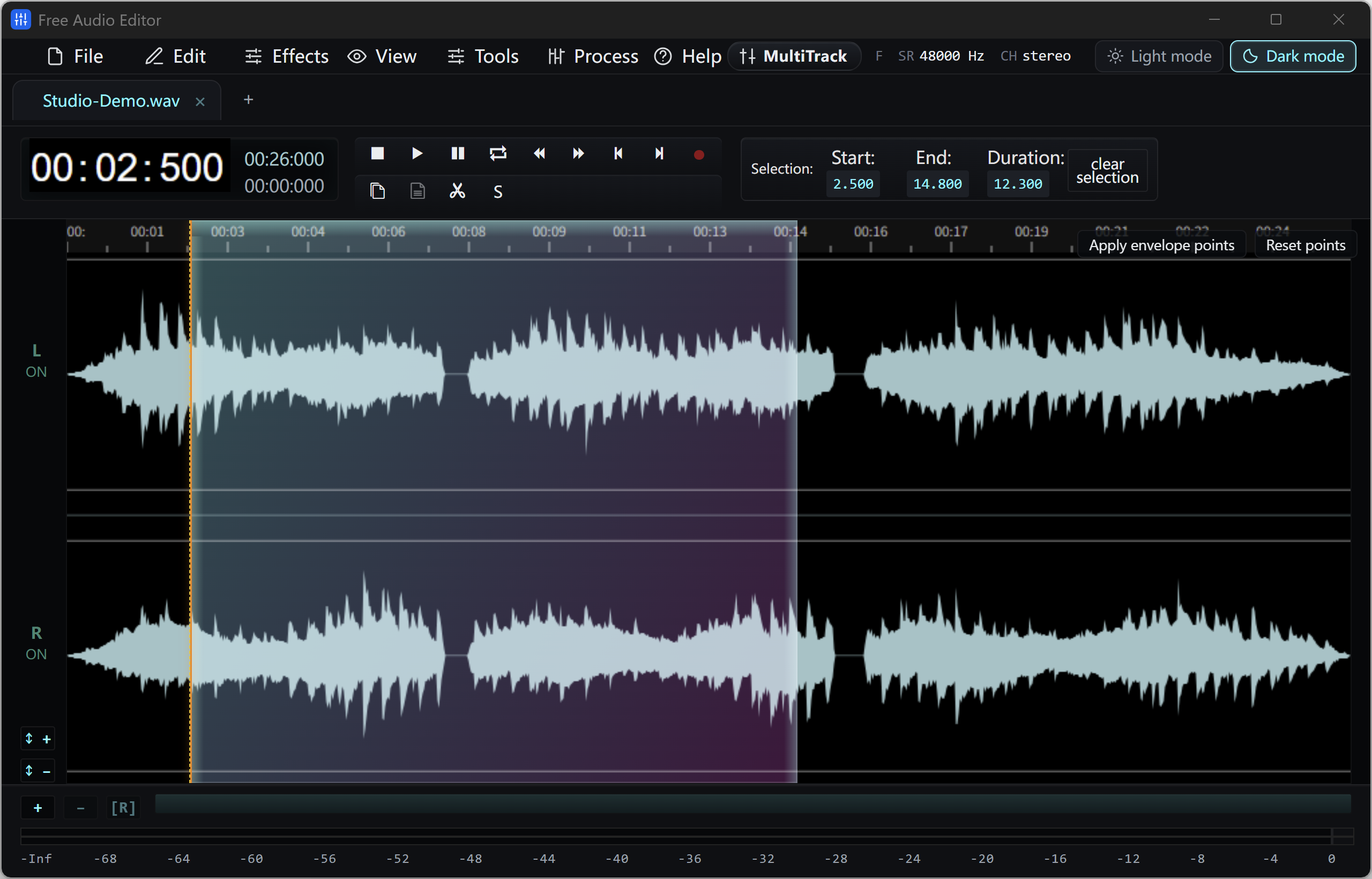
A sound editor shows audio as a waveform — a picture of the sound over time — so you can see exactly where a click, a breath or a pause happens and select it with the mouse. Unlike a simple “trimmer” app, a real sound editor lets you change the sound itself: make it louder or softer, filter frequencies, add echo, reverse it, or remove background noise.
For everyday sound work, a free sound editor should cover these basics:
- Precise selection and cutting — zoomable waveform, cut/copy/paste, and snapping to zero crossings so cuts do not click.
- Shaping tools — gain, fades, EQ, compressor, limiter and normalize.
- Creative effects — reverb, delay, distortion, reverse and speed/pitch changes for sound design.
- Clean-up — noise reduction plus click, hum and clipping repair.
- Recording — capture a microphone or the sound playing on your PC.
- Many formats in — open WAV, MP3, FLAC, OGG, M4A and the audio track of video files.
Popular Sound Editing Jobs and How to Do Them
The examples below use Free Audio Editor, a free sound editor for Windows 11 and Windows 10. Every command can also be found by pressing Ctrl+K and typing its name.
- Trim a sound effect: drag across the part you want and use Export Selection to save only that region as a WAV file. Add a 5–20 ms fade in and out so the effect starts and ends cleanly.
- Make a seamless loop for a game, menu or background ambience: open the Seamless Loop dialog, preview the loop and let the crossfade/zero-cross options hide the join.
- Reverse a sound (classic “reverse cymbal” or whoosh): select it and choose Effects > Reverse.
- Make a voice sound bigger or stranger: add Reverb or Delay, use Distortion for a radio/robot effect, or change the speed and pitch with the Speed Up / Slow Down profile controls.
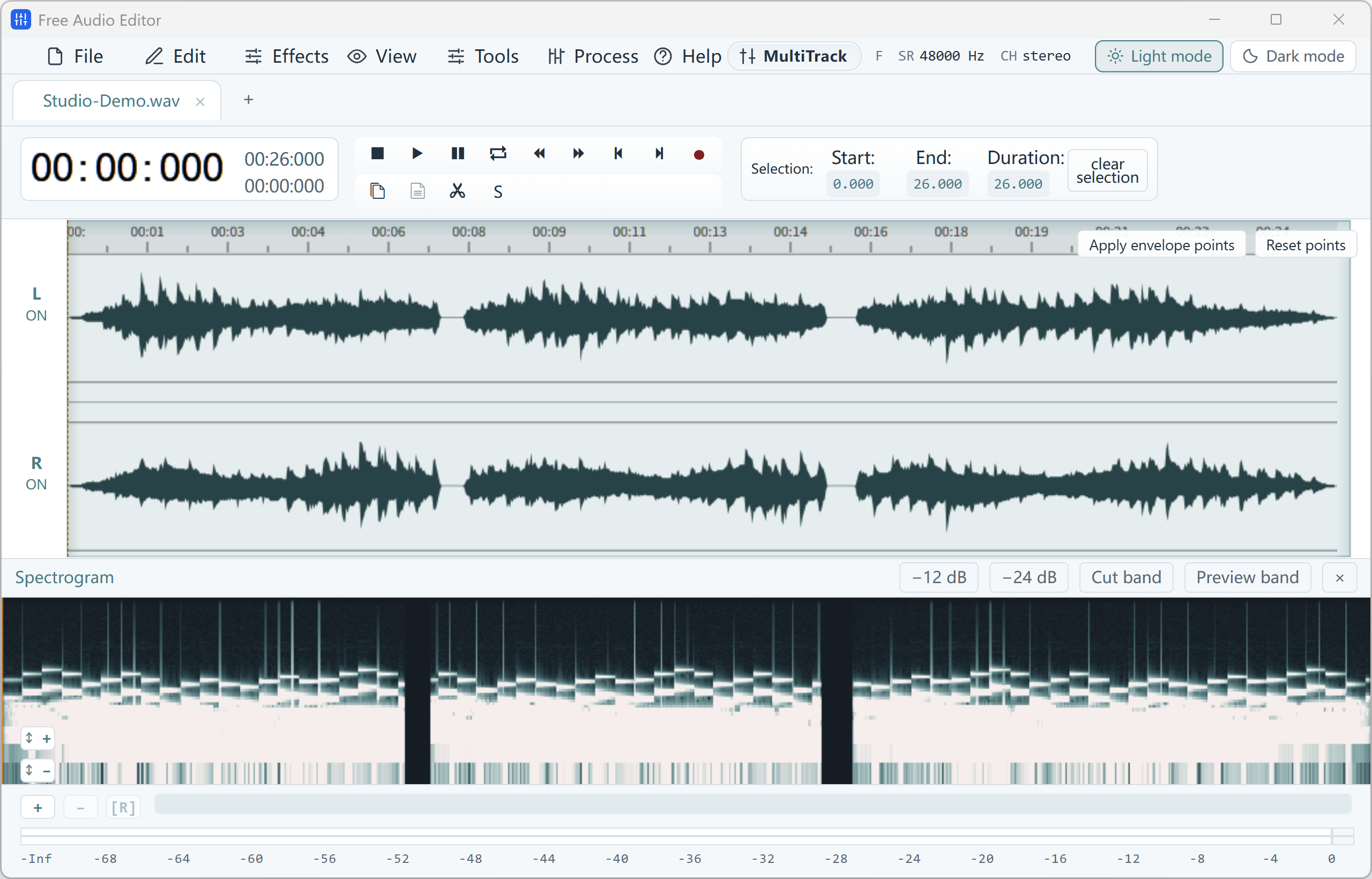
- Remove one annoying frequency: open the spectrogram, draw a box around the whistle, beep or tone, preview it and attenuate it by 12 or 24 dB.
- Generate test tones and noise: create sine, square, sawtooth or triangle tones, white or pink noise, or silence — handy for test signals, alarms and placeholder sounds.
- Cut a long recording into many clips: use Split by Silence or place markers and slice the audio at the markers into separate WAV files — a fast way to build a sound effects library.
Cleaning Up Recorded Sound
Field recordings and voice clips usually need a little repair before they sound professional. Free Audio Editor’s Repair Studio can analyze a selection and remove clicks, hum (Auto / 50 Hz / 60 Hz), clipping, harsh “s” sounds and breaths, with a Dry/Wet comparison so you can hear the difference before applying it. For constant background hiss on speech, use Noise Reduction (Voice), then a Noise Gate to silence the gaps between words.
Be realistic: heavily clipped or very noisy audio cannot always be fully restored, and strong settings can also remove sound you want to keep. Apply repair in small steps and compare.
Sound Editor vs. Online Sound Editor
A browser tool is fine for trimming one short clip. For regular sound work, a desktop sound editor has clear advantages:
| Online sound editor | Free Audio Editor (desktop) | |
|---|---|---|
| Upload needed | Often | No — files stay on your PC |
| Long recordings | Often limited | Full-length files |
| Effects & repair | Basic | EQ, compressor, reverb, Repair Studio, spectrogram |
| Record PC sound + mic | Rarely | Yes, at the same time |
| Multitrack mixing | Rarely | Built-in Multitrack Mixer |
| Watermark | Sometimes | Never |
Saving Your Edited Sounds
WAV is the standard format for sound effects in video editors and game engines, and Free Audio Editor saves WAV for free without registration — including 16-bit, 24-bit or 32-bit float. If you need MP3, OGG or FLAC copies, you can upgrade, or convert the WAV files for free with Free Video & Audio Converter, which converts a whole folder in one batch.
Want to try a quick trim first without installing anything? Our online audio editor trims a short clip in your browser.
How to Do It in Free Audio Editor (Step by Step)
-
Step 1: Open or record your sound
Drag a WAV, MP3, OGG or video file into Free Audio Editor, or record a microphone or PC sound with Tools > Record.
-
Step 2: Select and shape it
Select a region on the waveform, then cut, fade, filter, reverse or add effects with preview before applying.
-
Step 3: Export the result
Use Export Selection or Save to write a WAV file for your video, game or podcast project.
Frequently Asked Questions
What is the best free sound editor for Windows?
For sound effects, voice clips and quick clean-up, Free Audio Editor is a strong free choice on Windows 11/10: it combines waveform editing, effects, a spectrogram, repair tools and PC sound recording. Audacity is a popular alternative for plug-in heavy multitrack projects.
Is there a free sound editor without a watermark?
Yes. Free Audio Editor never adds a watermark, and editing, recording and WAV export are free without registration.
Can I edit the sound from a video file?
Yes. Open an MP4, MKV, MOV or other supported video in Free Audio Editor and its audio track opens as a waveform for editing. To cut or convert the video itself, use Free Video & Audio Converter.
Can a sound editor remove background noise?
Yes. Use Noise Reduction (Voice) for steady background noise on speech and the Repair Studio for clicks, hum, clipping, sibilance and breaths. Results depend on how noisy the original recording is.