Overview: How to Add Delay, Echo & Reverb Effects to Audio Files on PC
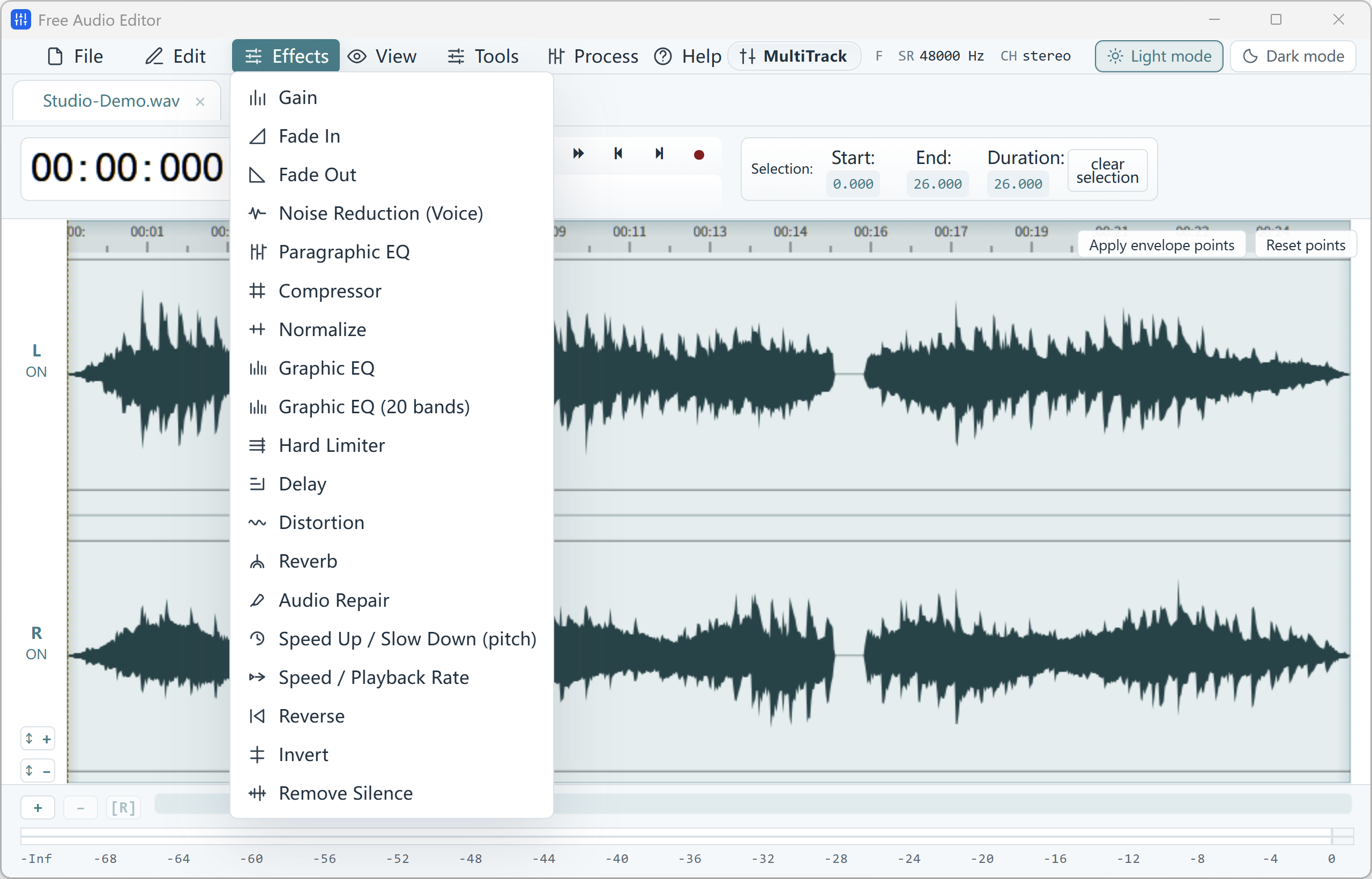
Shape space and ambience using the built-in Delay and Reverb effects with live preview in Free Audio Editor.
With Free Audio Editor, you get a complete stereo waveform and spectrogram editor, native microphone + WASAPI system loopback recorder, 5-stage Repair Studio, Podcast Chain, and Multitrack Mixer on Windows 11 and Windows 10. Audio editing, project saving (.wsmith), and WAV export are free without registration; registration unlocks MP3, FLAC, AAC, and 58 export definitions.
How to Do It in Free Audio Editor (Step by Step)
-
Step 1: Download & Launch the Windows Installer
Install and open Free Audio Editor on Windows 11 or Windows 10.
-
Step 2: Load Your Audio or Video File
Drag and drop your media files directly into the workspace.
-
Step 3: Process & Export Locally
Apply your edits or cleanup with live preview, then save to WAV (free) or registered export formats.
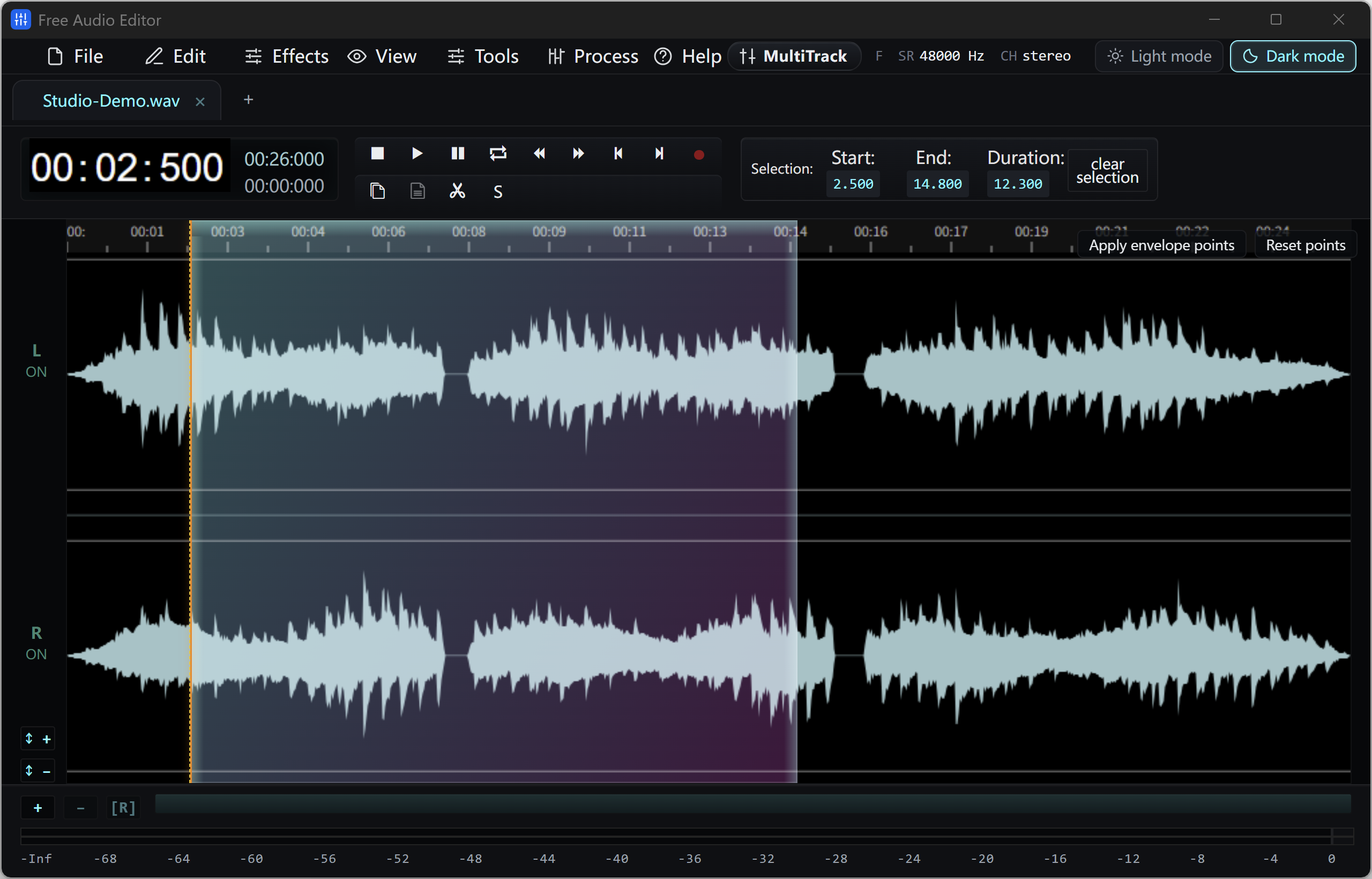
Menu names in the guide below may differ slightly from the current version. In Free Audio Editor, most commands are under Edit, Effects, Process and Tools — or press Ctrl+K to search for any command.
More Details & Tips
If you need to edit audio files to make your own music and beats, then check out , an advanced music editor that is free and easy for users of all levels. With this program, you can edit audio files with classic editing functions like cut, copy, paste, mix, trim, etc. easily. Free Audio Editor allows bookmark and region management. Unlimited UNDO/REDO is allowed to restore or redone the operation. This post will show you how to Add Echo to Audio with Free Audio Editor.
How to Add Echo to Audio Files
Step 1. Input an Audio File
To add echo to audio, you should download, install and launch Free Audio Editor first. Click “Home – Open” to activate a browser window, in which you can select an audio file from your computer. Then, click “Open” to input the audio file to the program.
Tips: All the files of the supported formats can be seen in the “Open” window & if you want know other formats supported, activate the “Files of type” dropdown list at the bottom.
Step 2. Select a Part of the File
Choose a region you want to edit. There are 4 ways to select a region:
Use hotkey like Shift+Home, Shift+End or Ctrl+A to select from start/end or all;
Click the left button and drag along with the waveform to the place you want to select;
Specify the beginner & end of the session by moving the sliders below the waveform window;
Input the start, end and length of time to choose specified region at the bottom of the editor.
Tips: If you do not select any part, some inactivated buttons will be in color grey and the corresponding features are unavailable; some audio effect will be directly applied to the whole waveform.
Step 3. Add Echo to Audio Selection
Now click “Effect” tab and choose “Echo” to activate the setting window. Specify detailed parameters or apply some popular presets to adjust the effect. Click “Preview” to listen to the music before adding the effects to the waveform to make sure you get exactly what you want. Then click “OK” to add echo effect to the selected region. (Differences between echo and delay)
Step 4. Save the Changes
Now go back to the “Home” tab and click the “Save” button to save the changes to the original file or click “Save File As” to save the changes with a different file name and/or location. After that you can select the output folder and format as well as adjust the output quality. Now, have great fun with edited music on your music player!
FAQ
Q: Free Audio Editor is free but is there any hidden cost for certain functions?
A: No, there are no hidden costs included, once you download and install this program, you can get started editing your music right away. We promise that you won’t pay any extra cost for some functions and all of them are free and there is not any registration for using.
Q: I’m new to music editing, how easy is it to start creating songs in Free Audio Editor?
A: It’s quite simple to edit audio. What you need to do is input an audio file by “Open” and in the “Home” tab, there are some tools for basic audio editing and there are many audio effects that you can easily find what you need. The whole process is no more than a few clicks. And we have created a step by step tutorial specifically for beginners to get started without hassle.
Conclusion
Free Audio Editor allows you to add echo to audio while providing all the tools you may need to properly produce, edit and enhance an audio file. As it gets all the marks of a good audio editor, you will always be right to say that it’s the best freeware that provides superb performance.