Overview: Practical Audio Editing, Mixing & Loudness Tips for Windows Creators
Use zero-crossing snap, A/B buffer snapshots, spectrogram cleanup, BPM estimation, and LUFS matching.
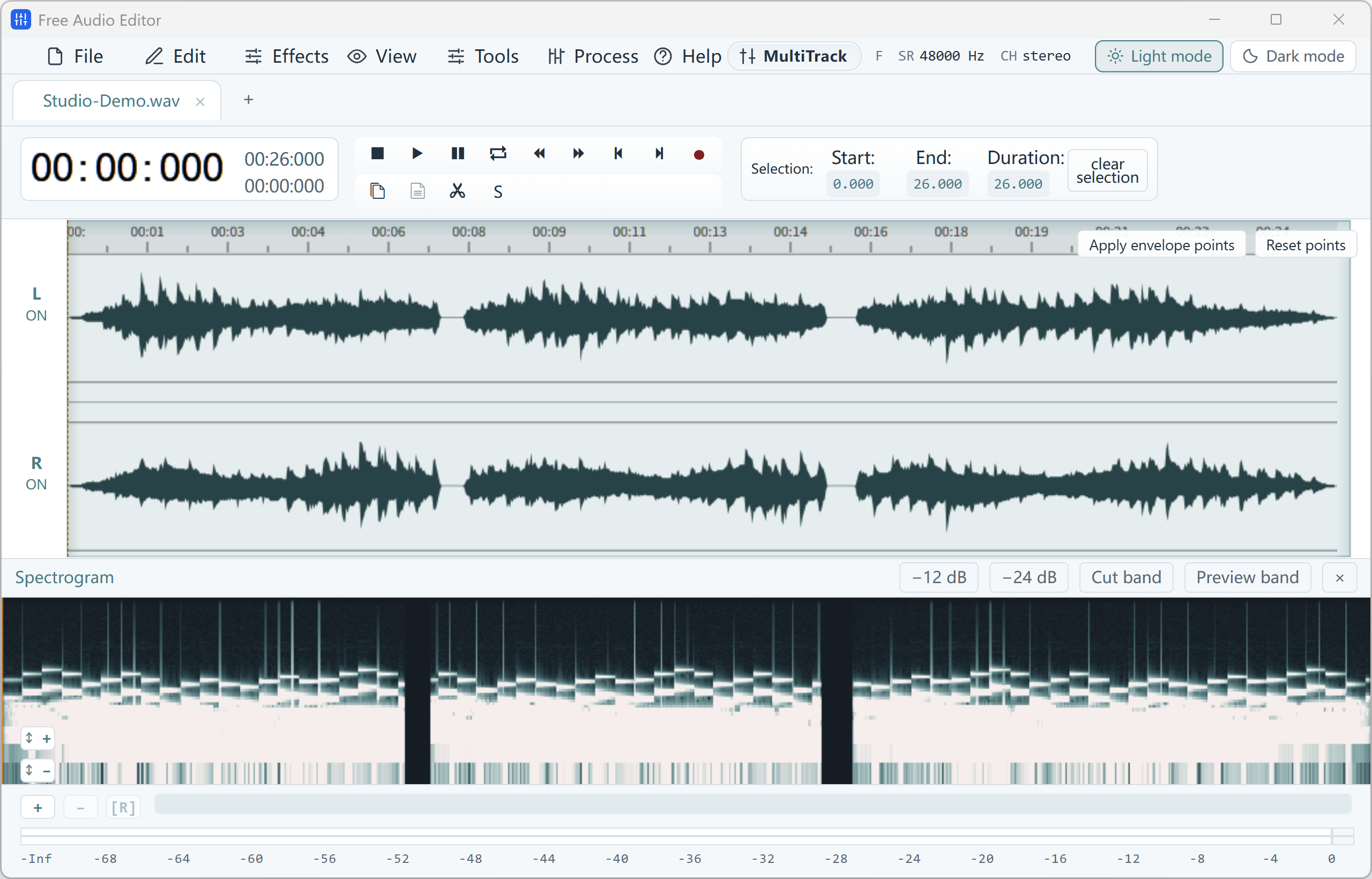
With Free Audio Editor, you get a complete stereo waveform and spectrogram editor, native microphone + WASAPI system loopback recorder, 5-stage Repair Studio, Podcast Chain, and Multitrack Mixer on Windows 11 and Windows 10. Audio editing, project saving (.wsmith), and WAV export are free without registration; registration unlocks MP3, FLAC, AAC, and 58 export definitions.
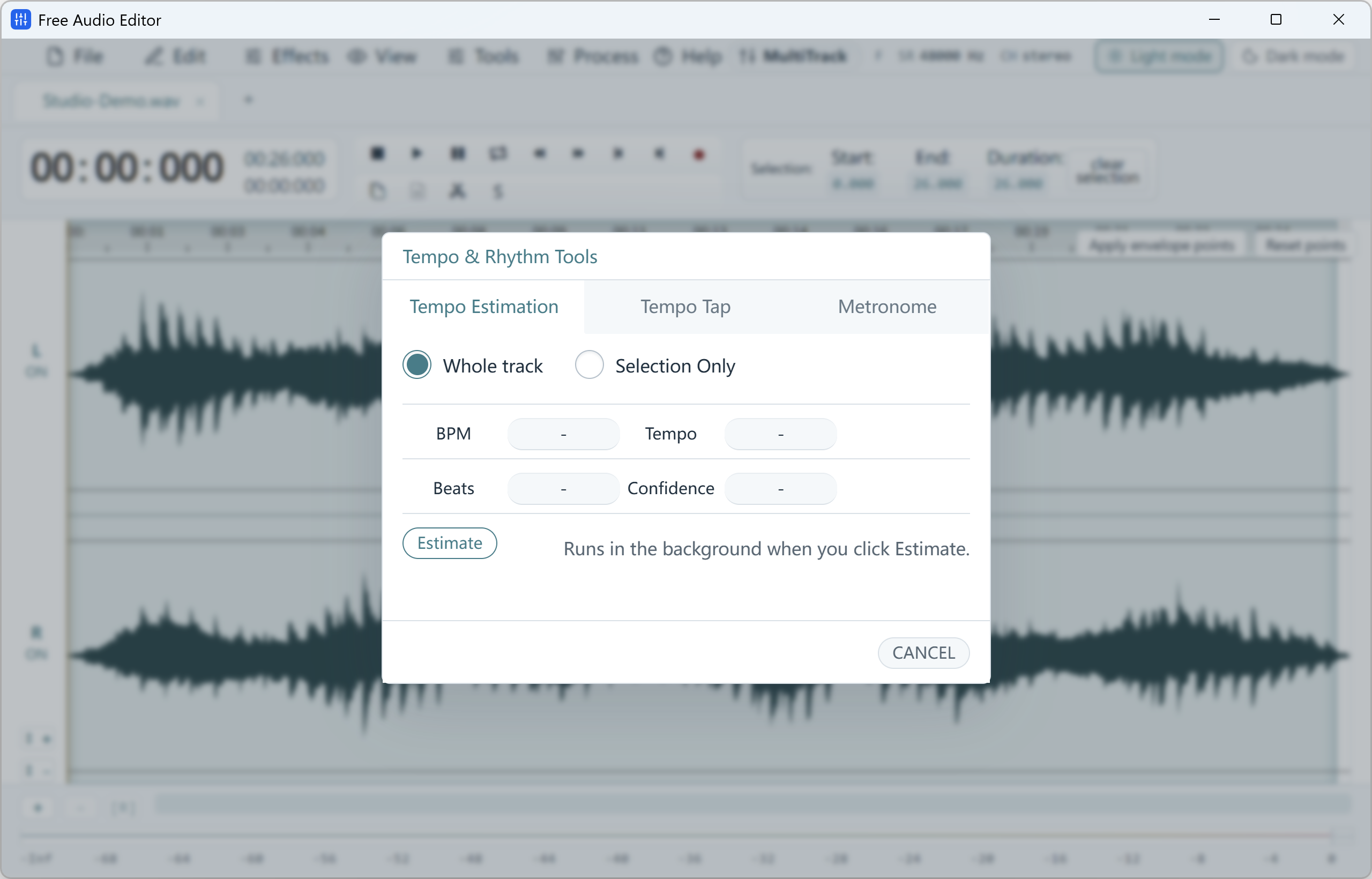
How to Do It in Free Audio Editor (Step by Step)
-
Step 1: Download & Launch the Windows Installer
Install and open Free Audio Editor on Windows 11 or Windows 10.
-
Step 2: Load Your Audio or Video File
Drag and drop your media files directly into the workspace.
-
Step 3: Process & Export Locally
Apply your edits or cleanup with live preview, then save to WAV (free) or registered export formats.
Menu names in the guide below may differ slightly from the current version. In Free Audio Editor, most commands are under Edit, Effects, Process and Tools — or press Ctrl+K to search for any command.
Introduction
Love sound, and dream about making a piece of special music to be heard by the right people? First of all, you should have acquired a fundamental understanding of the editing, mixing and mastering information & process that you can apply to any recorded music, video game sounds, ringtones making and movie soundtracks producing… Here are some tips on editing, mixing and mastering your music to achieve the effect you want.
1. Editing:
In editing, various sections of the audio are removed, added or spliced together. The audio is cleaned up of mistakes and accidental noises.
While Editing – the main focus should be on the natural flow of voice/music.
After Editing Music – you should listen to the audio at least twice to get it right. The important thing is to start listening to the audio 10 seconds prior to the edit point. This will give you the correct perspective of the flow of the audio. If the voice sounds hurried or slow, adjust the clips as required.
2. Cross Fade:
Cross fade should be applied to all overlapping clips. You should make sure the beginning and end of each clip has a small fade in and fade out, to make sure there is no clicking from the cuts.
3. Mixing:
Mixing is a broad term which covers various processes like equalizing, compression and leveling. Here are the basic rules of mixing:
Volume Level:
Pay attention that loud levels cause ear fatigue. Always mix with the monitors turned low. This will give a better perspective of the mix.
Equalizer:
While applying equalizer, always try to cut frequencies instead of boosting.
Check Mix:
Make sure you hear your mix on different audio systems to see how well they translate. This is an absolute must.
Background Music:
Make sure the background music does not drown out or conflict with the main vocals. Always mix the background music first, and introduce the vocals in the end.
4. Mastering:
This is the final step of music production. It is recommended that you use a good audio production studio or online studio to get your tracks mastered.
Spectrum Analyzer:
It is necessary to use a good spectrum analyzer to find out which frequencies are low and which are high in the mix.
Compressors:
You should use at least 2 compressors before putting on the limiter.
5. Stereo Imaging:
If required, use stereo imaging to separate the mix. But after stereo imaging, always check the mix in Mono. The mix should never fall apart in Mono.
6. Compare:
It is important to always compare the final sound with good commercially mixed tracks. This will immediately tell you the result if some frequencies are missing.