How to Add Text-to-Speech Narration to Audio Files on Windows Turn text into a spoken voice-over with a TTS voice, capture it in Free Audio Editor, and mix it with music or your own recording

Free Audio Editor does not generate speech by itself — but it is the perfect place to finish a text-to-speech voice-over: capture the TTS voice, trim the pauses, level the volume and lay it over background music.
Free for Windows 11 & 10 · Edit, record & save WAV free
Download Free Audio Editor

For Windows 11 & Windows 10 (64-bit)

Cut, record, remove noise & mix audio on your PC — free
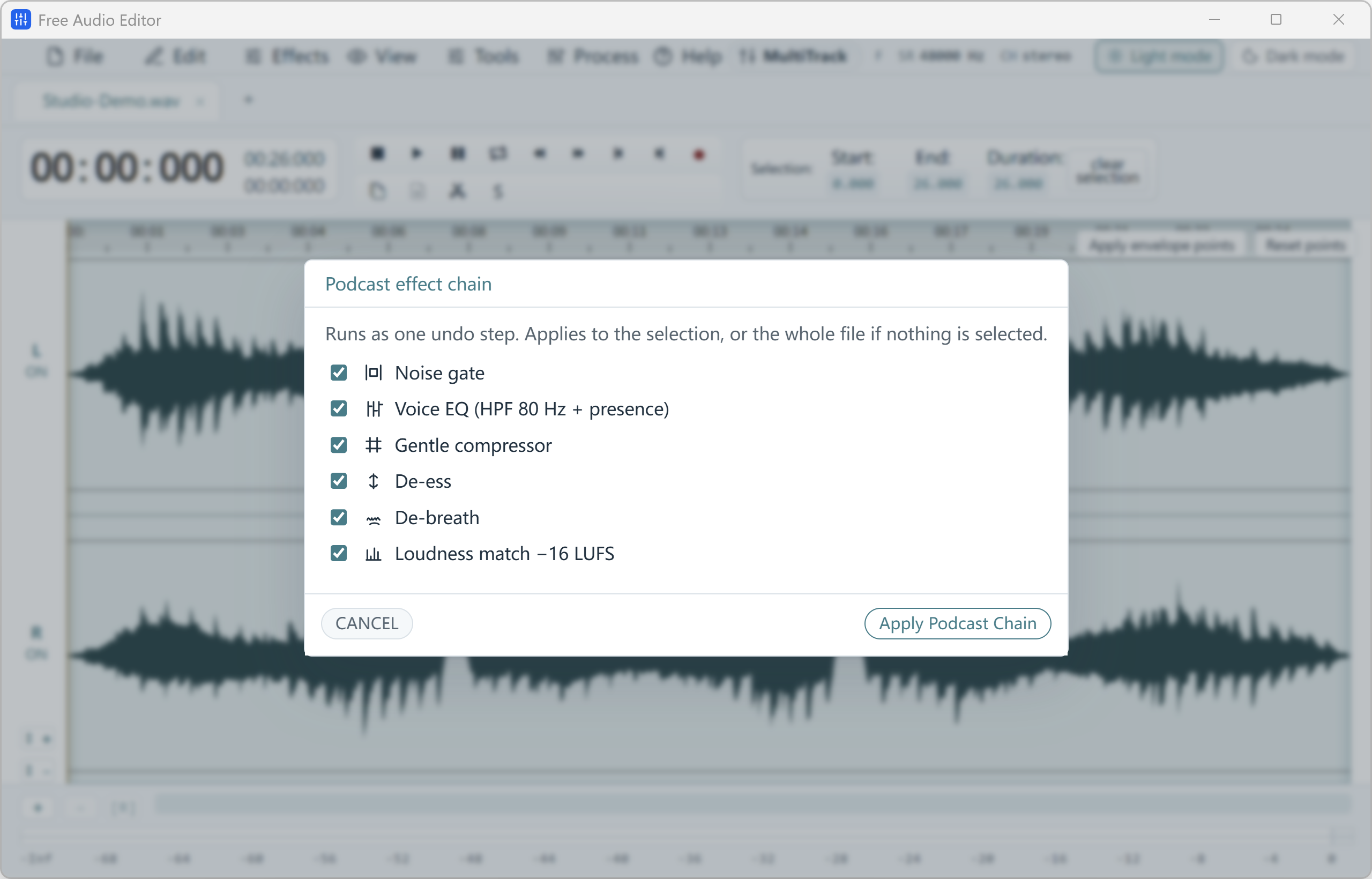
Free Audio Editor — Podcast chain combining noise gate, voice EQ, compressor, de-esser, de-breather and -16 LUFS loudness matching.
Configurable Podcast Voice Chain Original (2560 × 1640 px)

Step 1: Get the Spoken Audio from a TTS Voice

Use any text-to-speech voice you are allowed to use. On Windows, Microsoft Edge’s Read aloud feature and the Windows Narrator can read text with natural-sounding voices; many online TTS services also let you download the result as an audio file.

If your TTS tool can save a WAV or MP3 file, simply open that file in Free Audio Editor. If it can only play the voice aloud, record it: open Tools > Record, choose your Windows playback device, and Free Audio Editor captures exactly what your PC is playing.

  • Check the TTS provider’s license before using a generated voice in commercial videos or podcasts.
  • Record at 48 kHz if the narration is going into a video project.
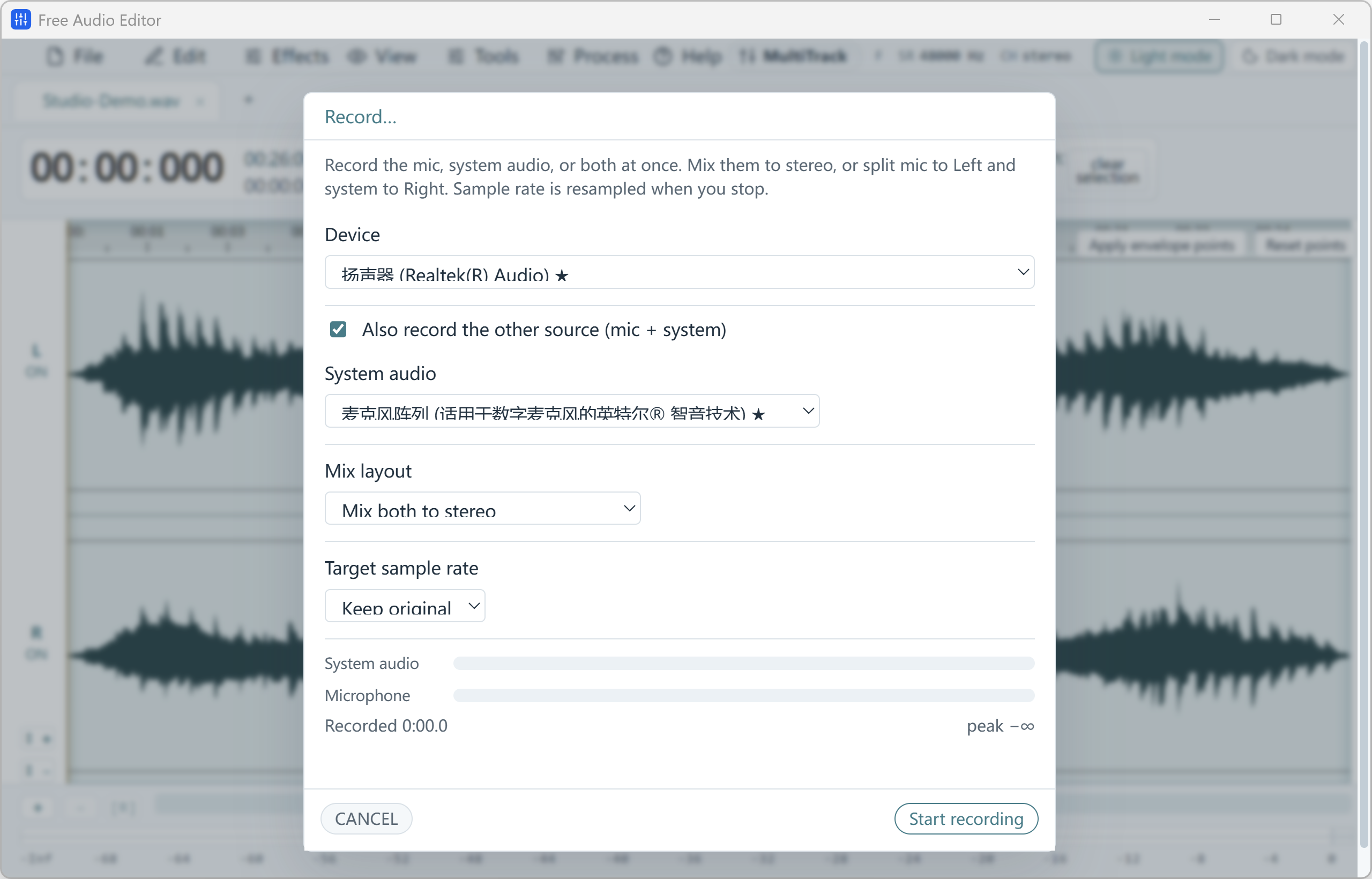
Free Audio Editor — Recording setup for microphone, system playback audio or both simultaneously (stereo mix or left/right channel split).
Microphone & WASAPI System Audio Recording Original (2560 × 1640 px)

Step 2: Clean Up and Pace the Narration

Synthetic voices often leave long gaps between sentences. Use Split by Silence to find the pauses, delete the ones you do not need, and add short fades so every cut is smooth.

Then run Normalize or the Podcast Chain to bring the voice to a consistent, comfortable loudness.

Step 3: Mix the Voice with Music or Your Own Recording

Open the Multitrack Mixer, put the narration on one track and your background music on another, and lower the music volume so the voice stays clear. Fade the music in and out, then export the mix as a WAV file — free.

How to Do It in Free Audio Editor (Step by Step)

  1. Step 1: Capture the TTS voice

    Open the TTS audio file in Free Audio Editor, or record it with Tools > Record using your Windows playback device.

  2. Step 2: Trim pauses and level the volume

    Remove long gaps, add fades, and normalize the narration.

  3. Step 3: Mix and export

    Combine narration and music in the Multitrack Mixer and save the result as WAV.

Try it on your own files

Free Audio Editor is free for Windows 11 & Windows 10. Install it in about a minute.

Download Free Audio Editor

Frequently Asked Questions

Does Free Audio Editor have a built-in text-to-speech engine?

No. Free Audio Editor edits and records audio. Generate the voice with a TTS tool you are licensed to use, then record or open it in Free Audio Editor to edit and mix it.

Can I put text-to-speech narration over background music?

Yes. Place the narration and the music on separate tracks in the Multitrack Mixer, lower the music volume, add fades and export the mix.

Get Free Audio Editor

Free download for Windows 11 & Windows 10 (64-bit).

Download Free Audio Editor

Two Complete Windows Desktop Programs by FAEMedia

Waveform Editor & Voice Studio

Free Audio Editor

Precision stereo waveform & spectrogram editing, microphone + Windows system audio recording, and multi-stage voice cleanup.

  • Waveform & Multitrack: Cut, trim, crossfade, zero-crossing snap, seamless loops, markers, and multitrack mixer.
  • Repair Studio & Podcast Chain: De-click, de-hum, de-clip, de-ess, de-breath, voice noise reduction, 20-band EQ, compressor & LUFS loudness matching.
  • Edition Rights: Audio editing, project saving, and WAV export are free without registration. Registration (Upgrade) unlocks MP3, FLAC, ALAC, AAC, OGG, Opus, WMA & additional export formats.
All-In-One Video, Audio & YouTube Converter

Free Video & Audio Converter

Unifies Free Audio Converter, Free Video to Audio Converter, Easy Audio Extractor, Easy Video Switch, and Easy YouTube to MP3 Converter in one application.

  • 428 Built-in Presets: Convert video (MP4, MKV, MOV, AVI, HEVC, AV1), audio (MP3, FLAC, WAV, AAC, M4A, OGG, Opus, WMA) & device profiles.
  • Edit, Compress & Upscale: Trim, merge, crop, add subtitles or watermarks, target file-size compression, local AI upscaling & DVD/Blu-ray authoring.
  • YouTube Queue & Free Export: Read online video or playlist formats, add to queue, and convert. All supported conversion & export features are free.

Try It Online — or Get the Full Version Free

Our online tools are perfect for one short clip. For whole folders, full-length movies, YouTube playlists and noise removal, the free Windows programs are faster, aren't limited by browser memory, and keep your files on your PC.

Online Audio Editor

Short clip waveform preview in browser. Full recordings & Repair Studio in desktop app.

Online Audio Converter

Convert short WAV, M4A, FLAC, or OGG clips to MP3 in browser.

Online Video to Audio

Turn a short MP4, MOV, or WebM into MP3 in your tab.

Online Audio Extractor

Pull a short soundtrack segment with fade controls.

Online Video Converter

Convert a short video clip to MP4 or WebM in browser.