Start with a voice recording and a piece of music or ambience you can use. Keeping them on different tracks lets you move or lower the music without cutting a word from the voice. If you still need the narration, record a take from your microphone first.
1. Put the voice and music on separate tracks
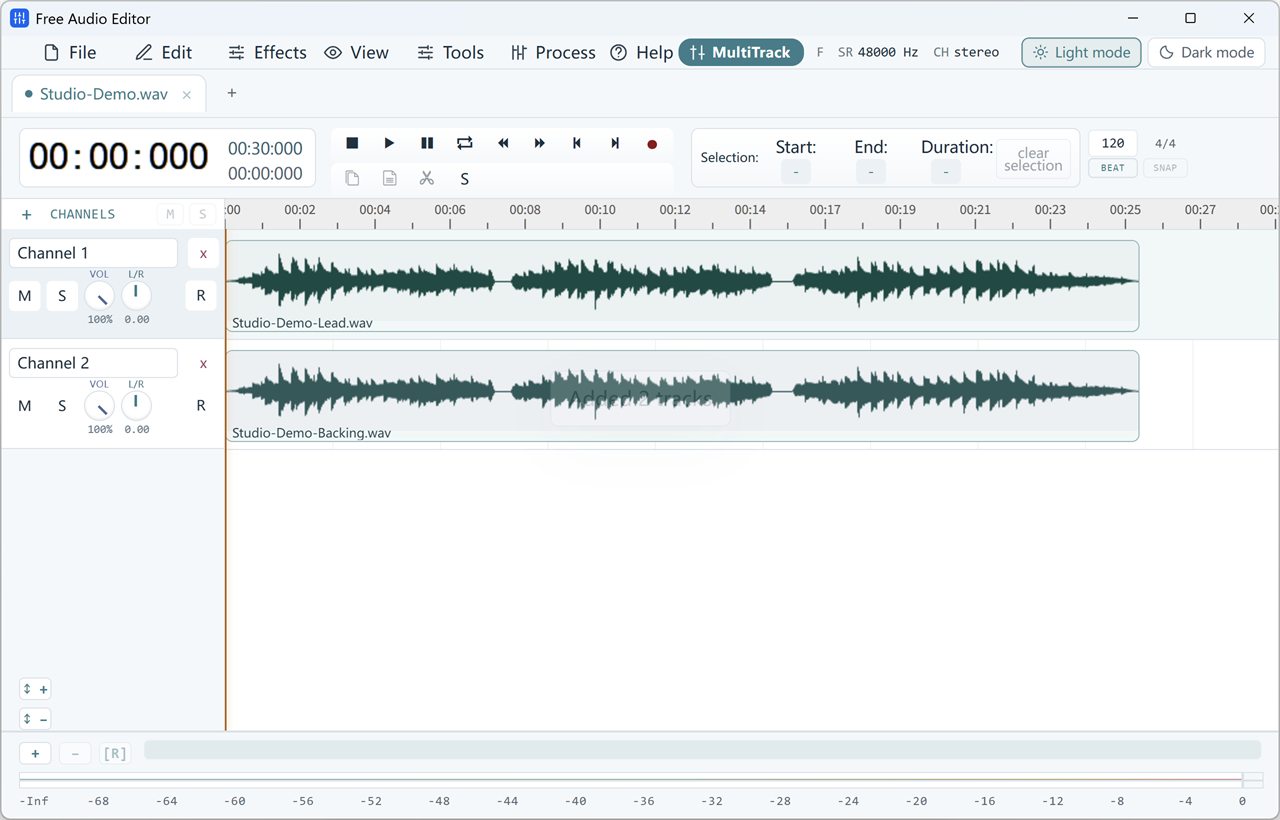
Open the Multitrack view. Drag your finished narration onto one row of the timeline and the music file onto another. Line up the start of the narration, then drag the music clip to the moment you want it to enter. For an interview introduction, that could be the pause after you say the guest’s name.
2. Set the music level against the quietest words
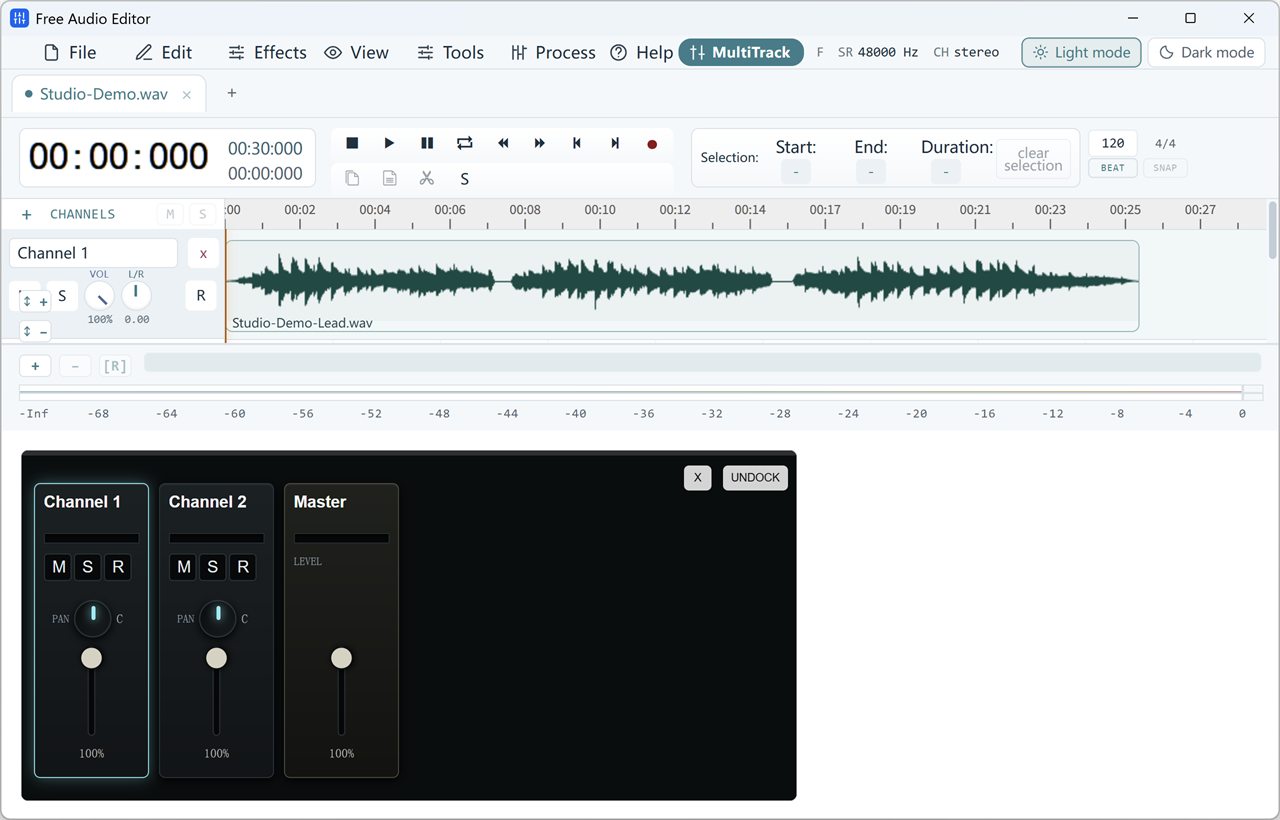
Find a section where the speaker finishes a sentence softly. Open the Multitrack Mixer, start the music fader low, and play that section with both tracks audible. Raise the music until you can hear its rhythm, then lower it slightly if a word becomes hard to follow. The voice fader can stay where it was.
Mute the music once while the same line plays. If the words suddenly become much easier to understand, lower the music further or try a sparser part of the song. Use the same check for a rain, room or street ambience recording.
3. Let music fill the pause between lines
For a short musical break, find the end of one sentence and the beginning of the next. Place a separate music clip in that gap. If the clip runs long, right-click it at the end of the gap, choose Split Here, then select and remove the extra piece. Play from just before the first sentence ends to hear the transition in context.
For continuous background music, leave the music clip under the narration. If you want a louder musical break, split the music at the edges of the pause and move that middle piece to its own track without changing its start time. You can then raise only that track’s fader.
4. Fade the music in and out
Use the music clip’s fade handles at its start and end. A short fade softens a sudden entrance. A longer fade lets the music disappear under a closing sentence. Listen through the last syllable before deciding where the music should end. The guide to fades and crossfades covers other ways to smooth a join.
5. Listen back before you share it
Play the introduction, the quietest line and the ending at one comfortable listening volume. Try headphones, then a small speaker if you have one. Save the editable project so you can return to the separate tracks, and listen to the finished mix once outside the editor.
Fix common voice-and-music mixing problems
- The music drowns out a few words.
- Play that line with the music muted. If the voice is clear on its own, lower the music or move a busy musical phrase into the next pause. If the voice is still uneven, level the narration before you rebalance the mix.
- I hear only the music or only the voice.
- Check each track’s Mute and Solo controls. Then check that the two clips overlap at the point where you expect to hear both.
- The mix crackles when both tracks play.
- Play the loudest overlap and look at the master meter. If the peaks reach the top, leave more headroom by lowering the track levels. Solo each track to check whether the crackle is already present in the source.